
Contact support
Support in the app reaches us directly. If you like, Audicap attaches a diagnostics package so we can find a problem faster.
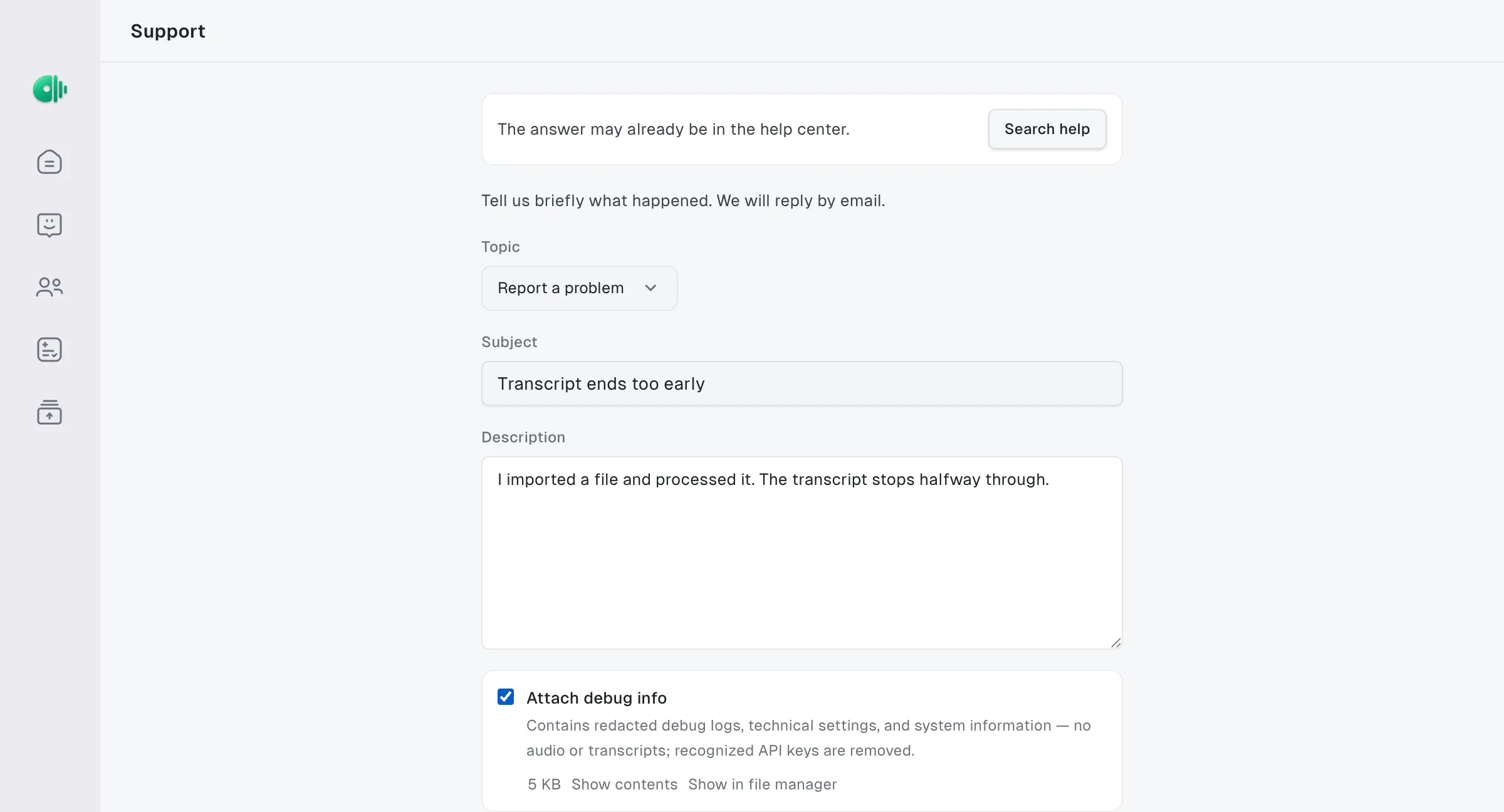
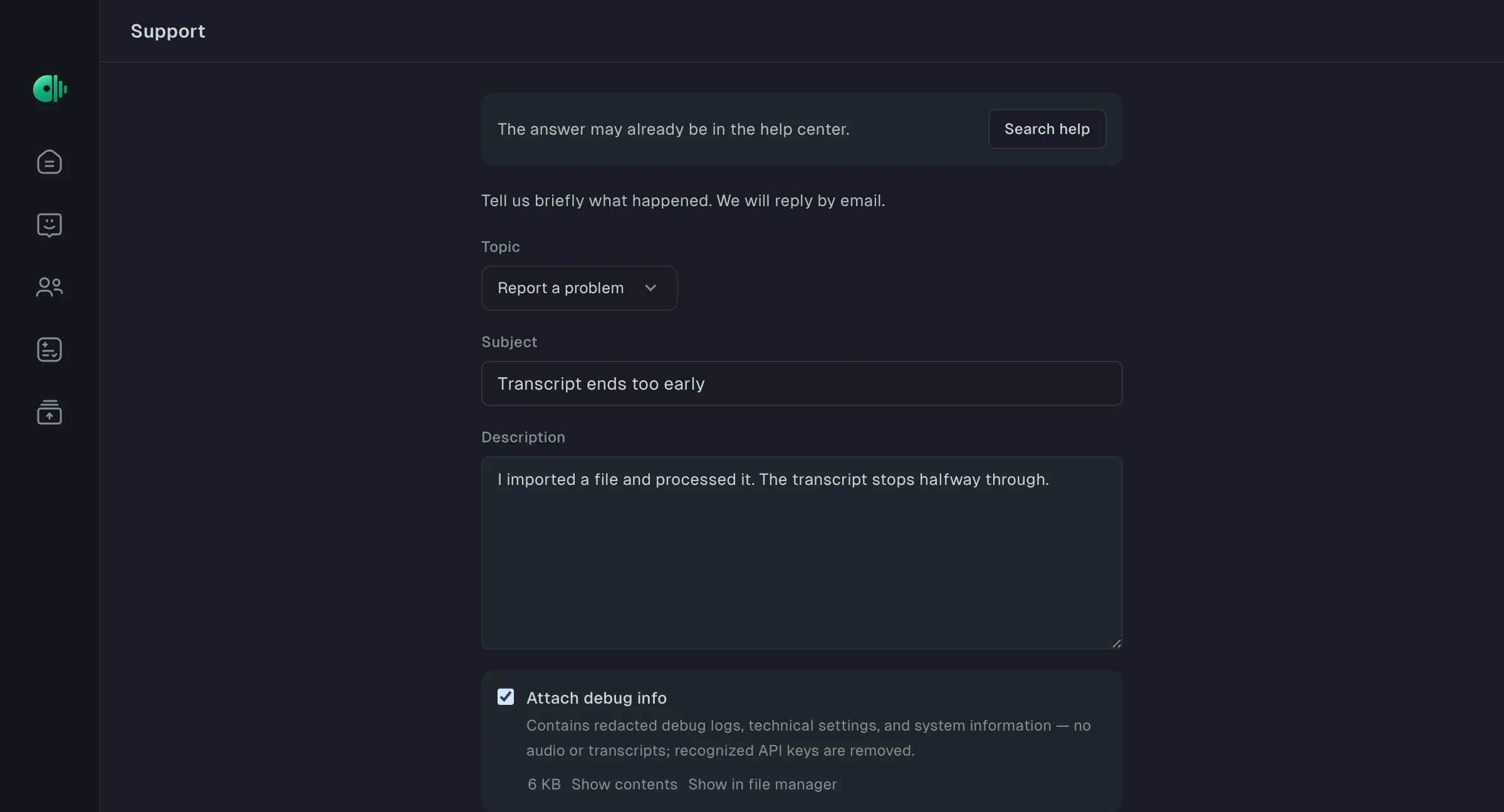
The answer may already be in the help center. Search help at the top of the page opens it in your browser.
How to
Section titled “How to”- In the bar on the left, click Support.
- Under Topic, choose Report a problem, Question, Feature request or Something else.
- Fill in Subject and Description. Both fields are required.
- When you report a problem, tick Attach debug info. It is off by default.
- Click Send request.
Audicap confirms with “Request sent” and shows a Reference. Quote it when you follow up on this request.
The reply
Section titled “The reply”We reply by email to the address of your Audicap account. At the bottom of the page, Audicap shows which address the reply goes to. You need to be signed in to send.
What the diagnostics package contains
Section titled “What the diagnostics package contains”Audicap only builds the package once you tick Attach debug info. You cannot send until it is ready. Then Audicap shows its size. Show contents lists the files in it. Show in file manager opens the folder with the package. Unpacked, you can read the files.
Included:
- The app’s logs. They refer to recordings by an ID instead of the title. Names of speakers, tags, spaces and templates are not in them. When packing, Audicap also removes recognized keys, tokens and calendar IDs, file names of recordings and exports, your home folder and device names. The email address of your Audicap account and error messages as written stay in.
- Technical settings from a fixed list, for example language, theme, the chosen transcription model, recording options and meeting detection. Of calendars only the count, never an ID.
- System information: app and system version, processor, memory, locale.
- Failed processing runs: the last 20, with duration, file size, format, source and time, without titles and without paths.
Not included: audio files, transcripts, notes, recording titles and API keys. Without the tick you only send topic, subject and description, plus the app version and operating system.
Packed, the package may be 25 MB at most. If you untick it or leave the page before a send has failed, Audicap discards the package.
If sending fails
Section titled “If sending fails”| Message | What helps |
|---|---|
| “No internet connection” | Go online and send again. |
| “The server did not answer in time.” | Send again later. |
| “Not signed in” | Sign in to Audicap, then send. |
| “The diagnostics package is too large.” | Untick Attach debug info and describe the problem in detail. |
| “The request could not be sent.” | Send again later. |
If sending fails, the diagnostics package stays on your computer. Audicap deletes packages older than seven days the next time you create one.
Good to know
Section titled “Good to know”- If an AI summary fails, Report problem takes you straight to support, with the subject and the error details already filled in.