
Manage and merge speakers
The Speakers view lists everyone Audicap knows, with their last meeting and their number of meetings. Here you maintain the profiles and clean up duplicates.
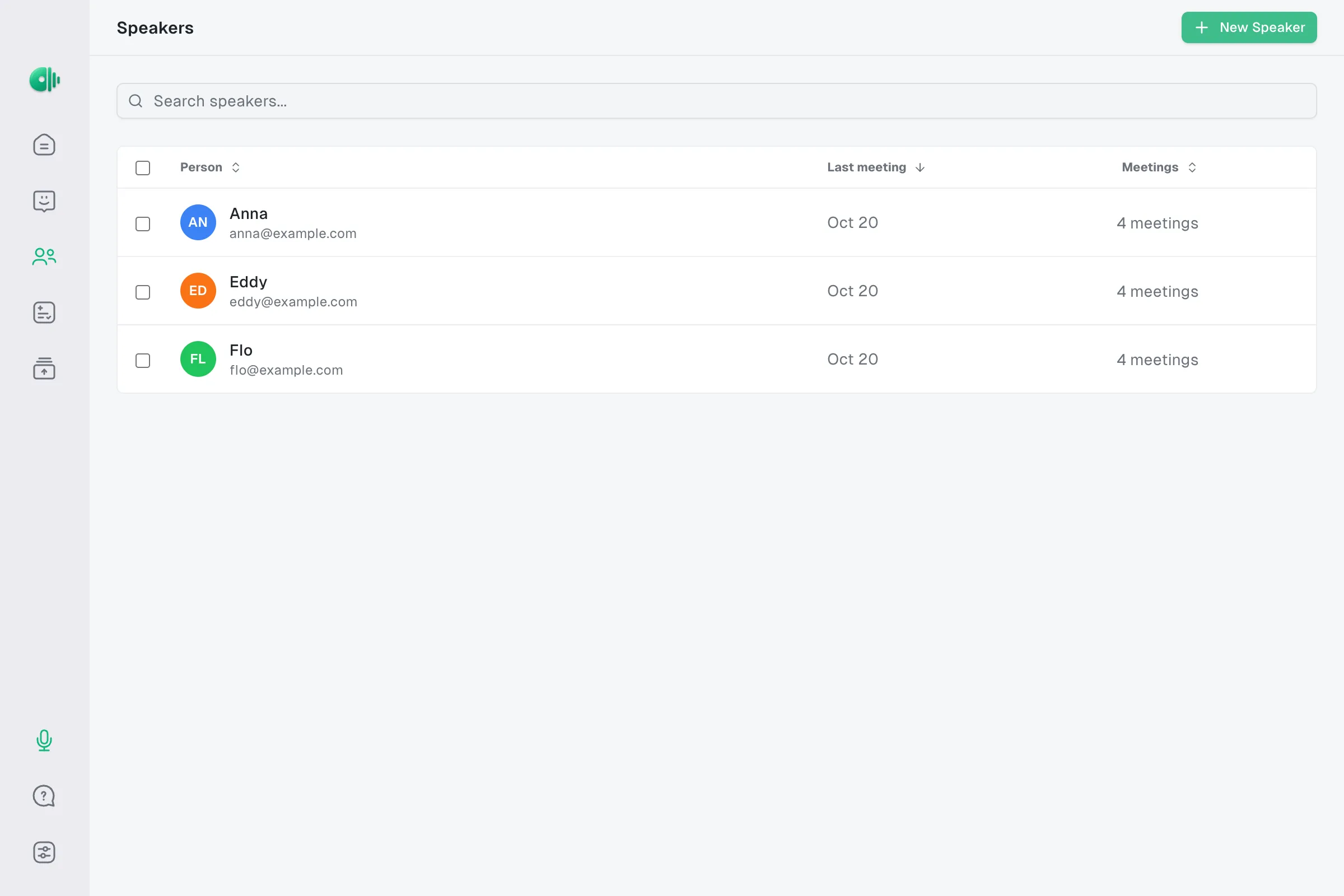
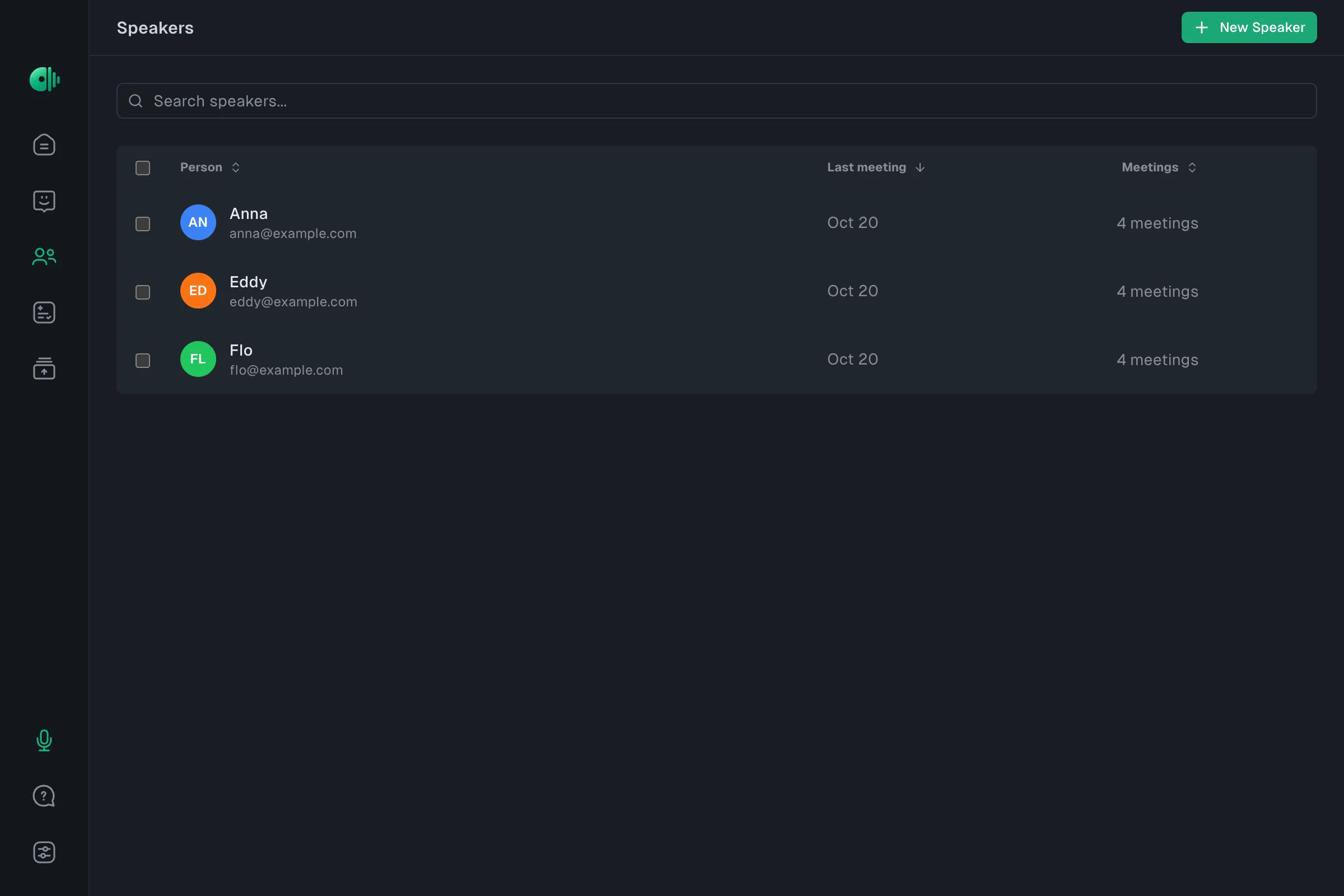
The Speakers view
Section titled “The Speakers view”- In the bar on the left, click Speakers.
- Search speakers… finds a person. Clicking a column heading (Person, Last meeting, Meetings) sorts.
- Clicking the number under Meetings shows only this person’s recordings in the library.
Your own profile is marked You.
Create and edit a profile
Section titled “Create and edit a profile”New Speaker creates a profile. When you move the mouse over a row, a pencil (Edit Speaker) appears, which changes an existing profile. A profile has these fields:
- Avatar (5 MB at most) and Color
- Name (required) and Nickname
- Email, Role, Company
- Notes
Merge speakers
Section titled “Merge speakers”If Audicap created the same person twice, for example as “Flo” and “Florian”, merge them:
- Tick the speakers concerned in the table.
- In the bar at the top, click Merge.
- Under Target speaker, choose which profile stays.
- Check the note on how many speakers are merged into the target and deleted, and click Merge.
Transcripts and participant lists then point to the target. Audicap fills empty fields of the target from the other profiles; details the target already has stay. Merging cannot be undone.
Your own profile can be the target, but it is never merged into another profile.
Delete speakers
Section titled “Delete speakers”Tick speakers and click Delete, or use the trash icon that appears when you move over a row.
Voice profiles
Section titled “Voice profiles”Under Settings → Privacy → Voice profiles, the Store voice profiles switch controls whether Audicap keeps a voice print for each speaker. It is on by default.
- On: Audicap recognizes known people in new recordings and suggests them when you assign speakers. For existing recordings with named speakers, Audicap adds the prints in the background.
- Off: Audicap deletes all stored voice prints right away, without asking. The speaker profiles with names and details stay.
Voice prints are never uploaded. Backups do include them, and switching off does not delete them from backups you already created.