
Local models or cloud providers
Audicap summarizes either locally on your computer or through a cloud provider. New installations are set to Local. You download the model for it once, during setup or as described below.
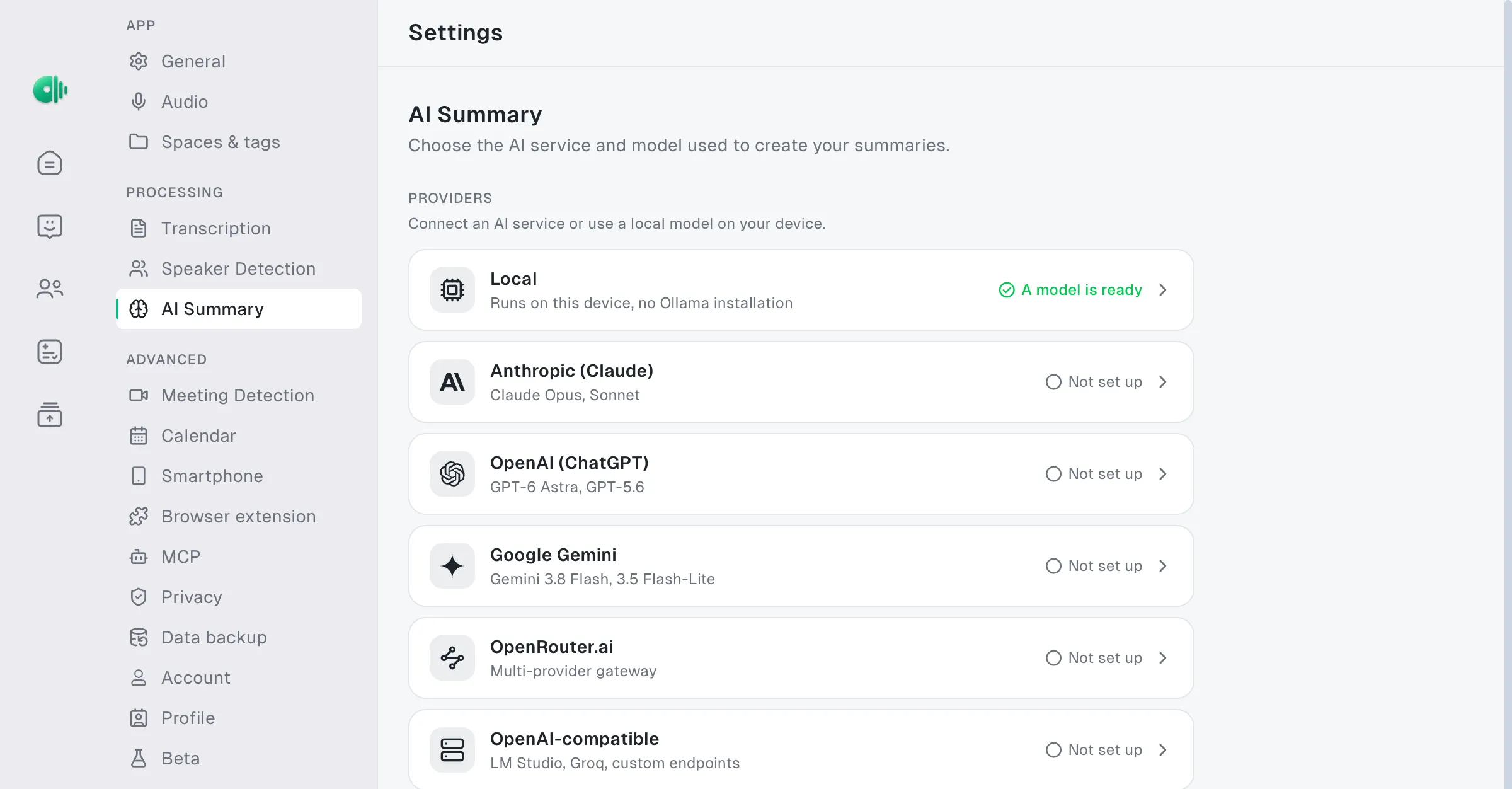
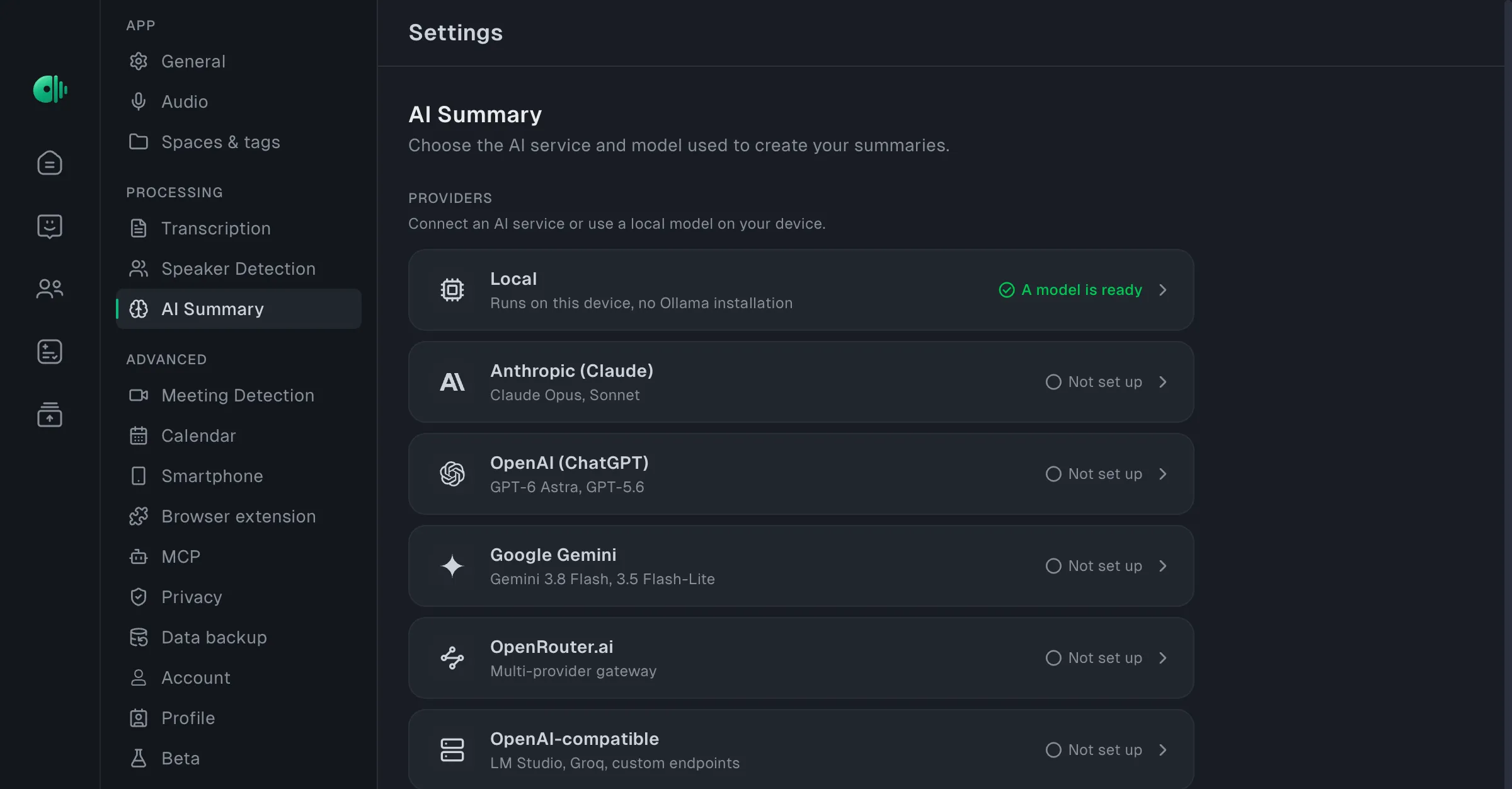
Local or cloud?
Section titled “Local or cloud?”| Local | Cloud provider | |
|---|---|---|
| Where the summary is created | on this device | at the provider |
| Internet needed | no | yes |
| Cost | none | pay per use at the provider, with your own API key |
| Several templates | one after the other | at the same time |
| Quality and speed | depends on the model and your memory | usually faster and more precise |
With a cloud provider, the transcript and, if ticked, your notes go to that provider.
Download a local model
Section titled “Download a local model”- Open Settings → AI Summary and click Local.
- Click Download next to the model you want. Audicap marks the model that fits your memory with “Recommended for this device”.
- Click Use as default.
| Model | Download | Memory, about |
|---|---|---|
| Gemma 4 E2B (Q4_0) | 2.7 GB | 3.6 to 4.1 GB |
| Gemma 4 E4B (QAT Q4_0) | 4.9 GB | 6 to 7 GB |
| Gemma 4 12B (QAT Q4_0) | 6.7 GB | 8.4 to 9.5 GB |
| Qwen3.5 4B (Q4_K_M) | 2.6 GB | 3.7 to 5.8 GB |
| Qwen3.5 9B (Q4_K_M) | 5.4 GB | 6.5 to 8.5 GB |
The models come from the Audicap server and then live on your device. Larger models summarize more precisely but need more memory and time.
Set up a cloud provider
Section titled “Set up a cloud provider”- Open Settings → AI Summary and click the provider, for example Anthropic (Claude), OpenAI (ChatGPT), Google Gemini or OpenRouter.ai.
- Enter your API key and click Test. If it works, Audicap reports “API key is valid!”.
- Under Models (preselection), choose the models you want to use. Only then do they appear in a recording’s AI Summary section.
Audicap stores the API key encrypted on your device.
Region for OpenAI and OpenRouter
Section titled “Region for OpenAI and OpenRouter”For OpenAI and OpenRouter you choose the Region: EU or Global. By default the requests go to the global endpoint; Audicap never switches to the other region on its own.
- OpenAI, EU: only with OpenAI’s approval for data residency in Europe (Zero Data Retention or Modified Abuse Monitoring, with the agreement). The key can come from a project in the Europe region or with the geography “Global”.
- OpenRouter, EU: only with a Business or Enterprise plan. In the EU only models with a provider in the EU are available. Requests through your own provider keys (BYOK) go to your own deployment, which has to be in the EU itself; OpenRouter does not check this.
Ollama and your own servers
Section titled “Ollama and your own servers”- Ollama: if Ollama runs on your computer, Audicap detects it and shows the loaded models. You
change the address under Server URL; by default it is
http://127.0.0.1:11434. - OpenAI-compatible: for LM Studio, Groq or your own endpoints, enter a Base URL, for example
http://localhost:1234/v1.
If no local model is there
Section titled “If no local model is there”Without a model, a recording’s AI Summary section shows the link Download a local model instead of the model choice. It leads straight to the right setting.