
Cut out a range
You can cut a range out of a finished recording. Audicap shortens audio and transcript and creates the summaries anew.
How to
Section titled “How to”- Open the recording.
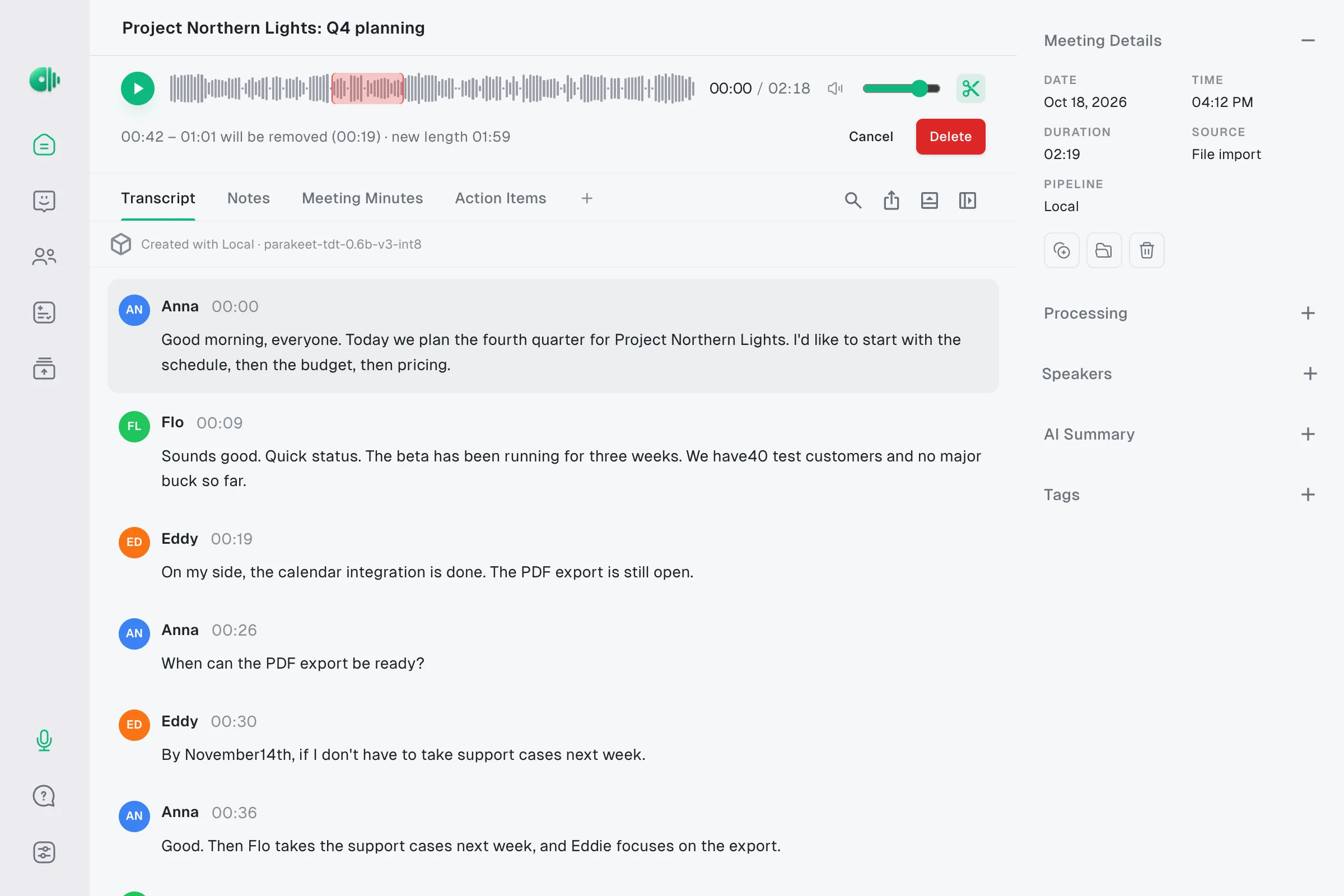
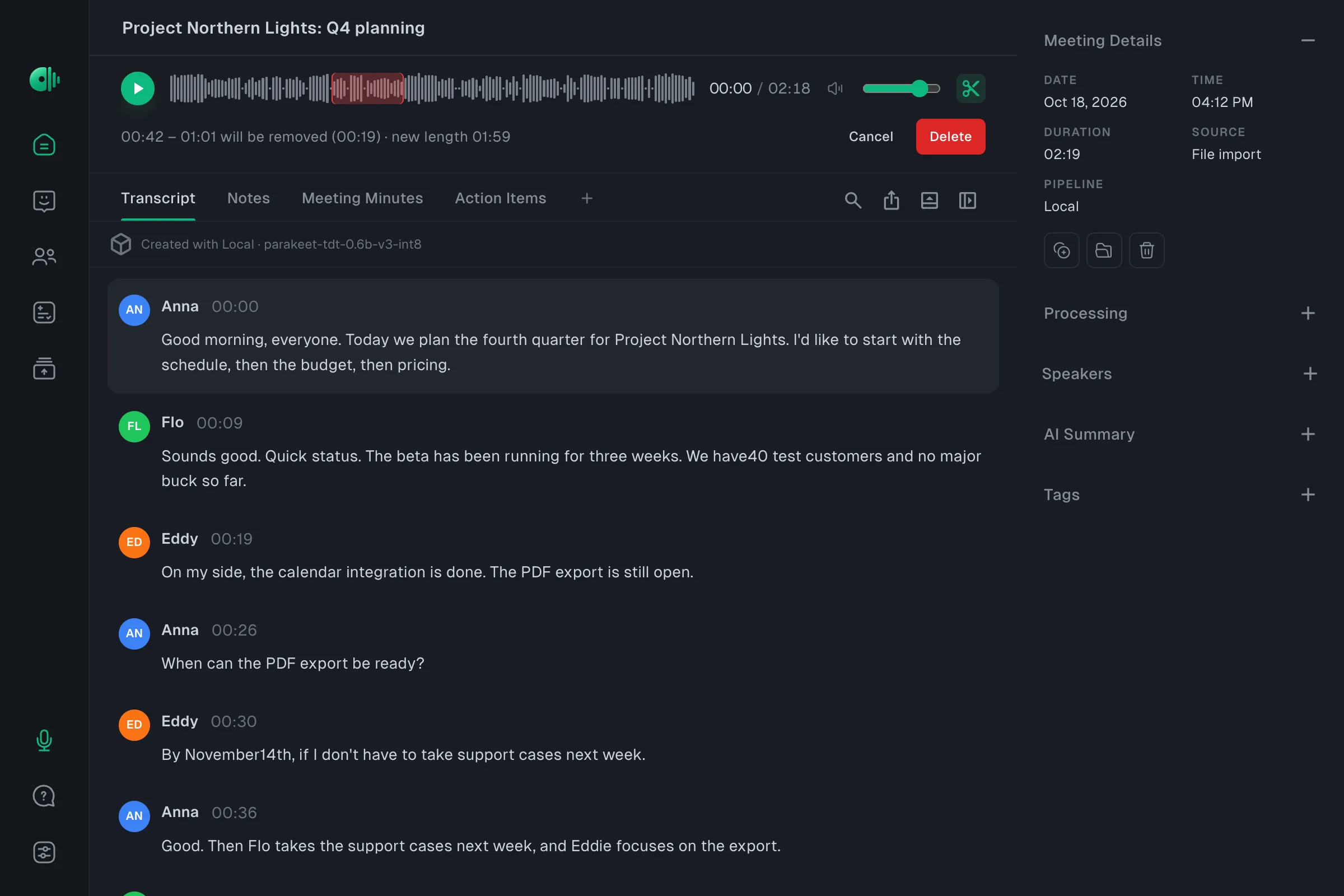
- In the player, click the scissors (Cut out a range).
- Drag across the part of the waveform that should go. The edges snap to sentence boundaries.
- Below the waveform, Audicap shows what will be removed and the new length. If it does not fit, simply drag again.
- Click Delete and confirm Cut out this range?.
- Below the waveform you now see how far the cut is: first “Measuring the length …”, then “Cutting” with a percentage, finally “Saving …”. The elapsed time runs next to it, a bar below. A running cut cannot be cancelled.
Audicap reports “Recording trimmed” with the duration removed. For several places, repeat the steps.
What happens when you cut
Section titled “What happens when you cut”- Sentence boundaries: if the middle of a sentence lies in the marked range, the whole sentence goes. Otherwise it stays whole. Pauses between sentences are cut exactly.
- Times: everything after the cut moves forward. The transcript’s timestamps then match the new recording.
- Summaries: Audicap deletes the old ones and creates them anew with the default model. If one cannot be created again, Audicap names it with “Not generated anew”. Create it by hand then.
- Notes stay unchanged.
- The original goes to the operating system’s trash.
Good to know
Section titled “Good to know”- A cut cannot be undone in Audicap. The old audio file is in the trash, but transcript and summaries have already changed.
- Cutting works only on a finished recording with an audio file and not while a recording is running. If the recording is being processed or summarized, wait until that is done.
- Cancel discards the marked range without changing anything.