
Copy for MCP
Instead of describing a recording, you hand the assistant a reference. It then fetches exactly that recording instead of searching for it.
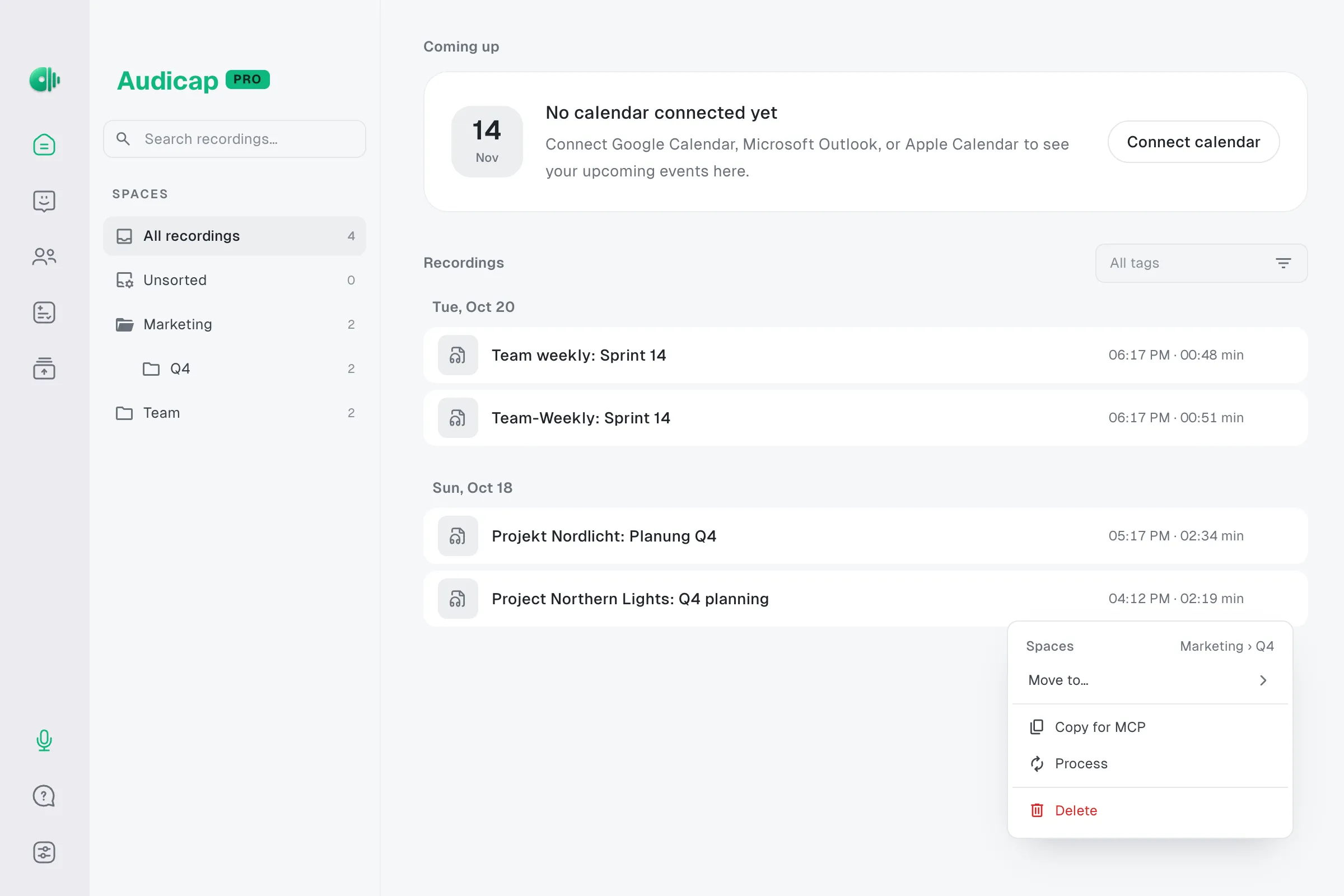
How it works
Section titled “How it works”- Switch on access under Settings → MCP (see Connect Claude Desktop and Claude Code). The entries only appear while access is running.
- Choose what to hand over:
- One recording: the recording’s … menu in the list → Copy for MCP. Alternatively, the MCP icon (Copy meeting ID for MCP) on the right side of a recording.
- Several recordings: select them, then Copy for MCP in the bar at the top.
- A space: the space’s menu in the sidebar → Copy recordings for MCP. Child spaces are included.
- Audicap reports “Reference copied for MCP”. Paste it into the chat with your assistant and ask your question.
What gets copied
Section titled “What gets copied”A header line that points the assistant to the MCP server “audicap”, and one line per recording with title, date and ID, for example:
- "Project Northern Lights: Q4 planning" (2026-10-18), id: …The reference contains none of the recording’s content. The assistant reads that through the access only.