
Process a recording again
If a transcript is inaccurate, process the recording once more, for example with a larger model or an online service. The choice applies to this recording only.
How to
Section titled “How to”- Open the recording.
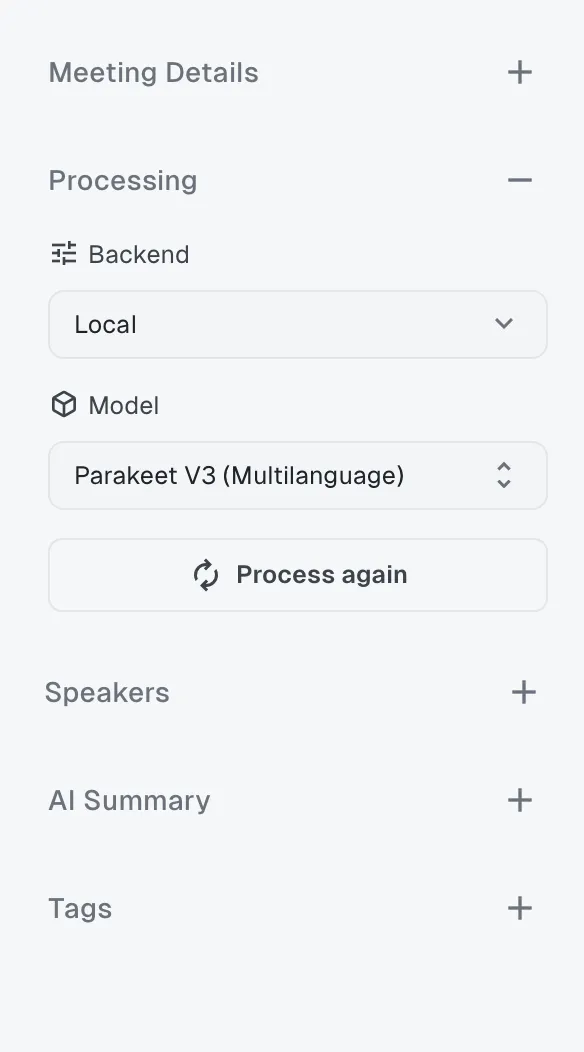
- On the right, expand the Processing section.
- Under Backend, choose the method, and under Model, the model.
- Click Process again and confirm Process recording again?.
You can also start from the home page: click the three dots next to the recording and choose Process.
What changes and what stays
Section titled “What changes and what stays”| Transcript | is created anew and replaces the old one. |
| Speaker assignment | is created anew. The speakers are called “speaker-1”, “speaker-2” and so on again. |
| Replacements from find and replace | are lost, because the transcript is created anew. |
| Summaries | stay, but are still based on the old transcript. |
| Notes | stay. |
| Cuts | stay. The cut version is processed. |
| Speaker profiles | stay. |
After the run, Audicap offers to assign the speakers again. With stored voice profiles, Audicap suggests known people itself: Assign and rename speakers.
If you want a summary of the new transcript, create it again: Create summaries with templates.
Good to know
Section titled “Good to know”- Backend lists online services only when a key is saved. Model lists only models that are fully on your device.
- The choice here does not change the default for new recordings. You set that under Settings → Transcription.
- If the recording has no transcript yet, the button is called Process, and there is no question.