
Consent, call end and overlay
Audicap records without a bot in the call. So that everyone knows and nothing keeps running by mistake, a few helpers come with every recording.
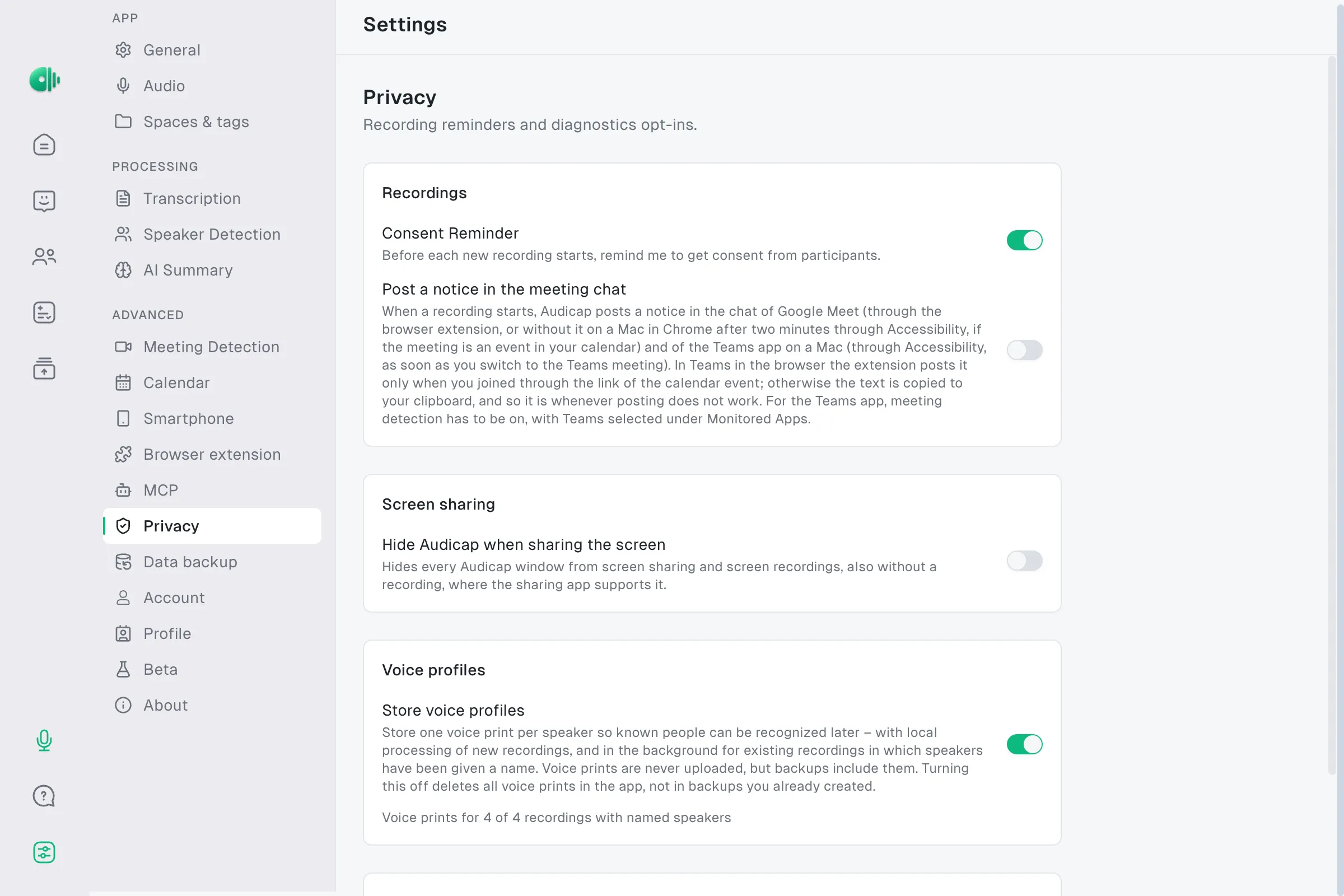
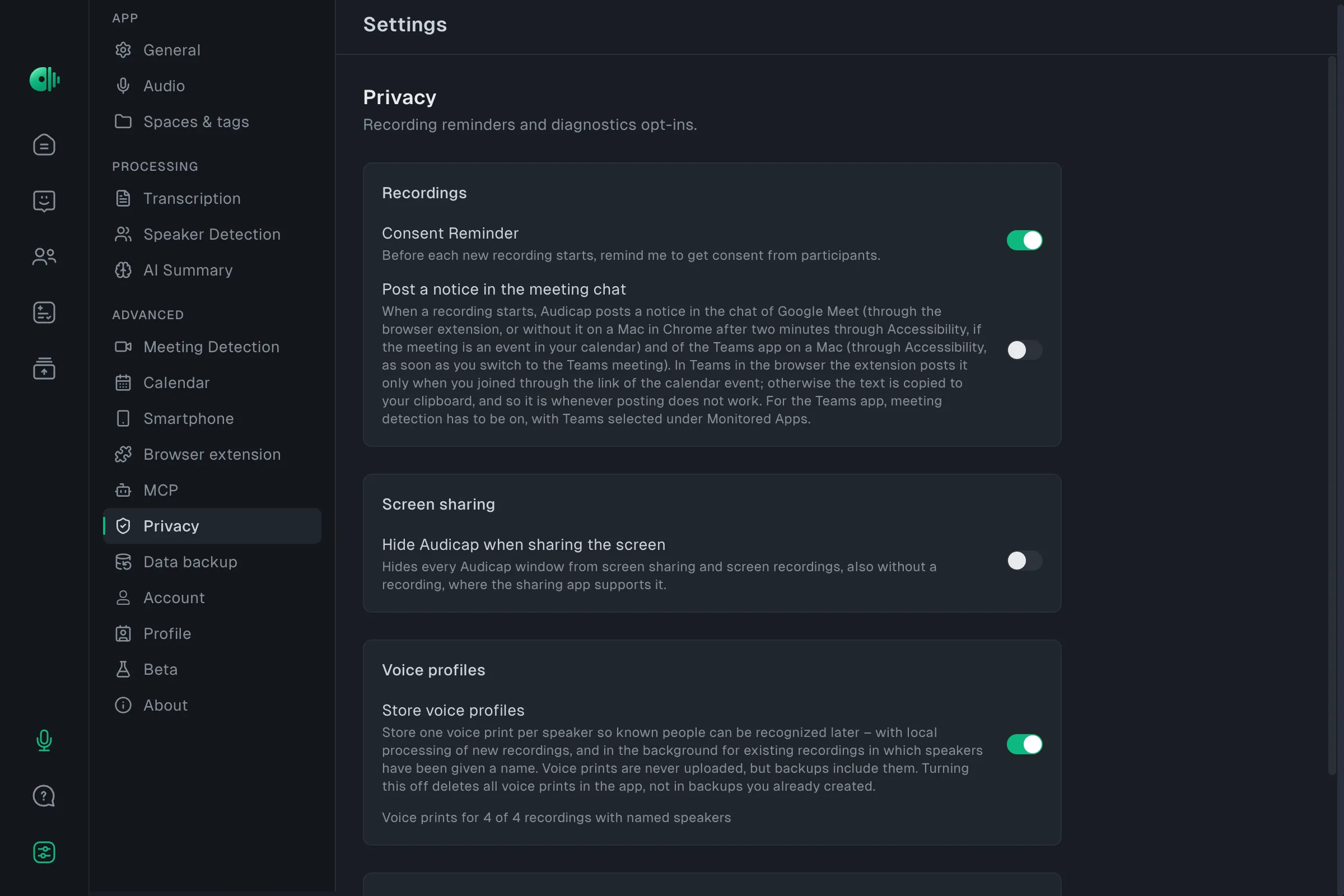
Consent reminder
Section titled “Consent reminder”Before every new recording, Audicap shows the Get consent window: remember to get consent from the participants. Click Start recording or Cancel.
The reminder appears on every start, whether from the app, the menu bar or after a meeting detection. You can only switch it off in the settings:
- Open Settings → Privacy.
- Under Recordings, switch Consent Reminder off. It is on by default.
When you continue a finished recording, the reminder does not appear. Audicap only reminds you; this does not replace a legal review.
Notice in the meeting chat
Section titled “Notice in the meeting chat”Audicap can post a short notice in the meeting chat when a recording starts, so that everyone knows it is being recorded. It is off by default.
- Open Settings → Privacy.
- Switch on Post a notice in the meeting chat.
- Under Notice text you can change the text. If you leave the field empty, the default text in the app language applies.
Audicap posts the notice once per recording, with the reminder on only after the Get consent window:
- Google Meet: through the browser extension. Without it, Audicap posts on a Mac in Chrome after two minutes through Accessibility, if the meeting is an event in your calendar.
- Microsoft Teams (app, Mac): through Accessibility, as soon as you switch to the Teams meeting. For this, meeting detection has to be on, with Teams selected under Monitored Apps.
- Teams in the browser: through the extension, if you joined through the link of the calendar event.
- For any other detected meeting, and whenever posting does not work, the text is copied to your clipboard and you paste it yourself. On Windows this also applies to the Teams app and to Meet without the extension.
If nothing points to a meeting, for example a dictation without a calendar event and without a detected app, Audicap posts no notice.
For the Teams app and Meet without the extension, Audicap needs the Accessibility permission. When live runs over the cloud, Audicap appends a sentence about AssemblyAI and the EU data zone. The notice does not replace the participants’ consent.
“End the recording too?” at the end of a call
Section titled ““End the recording too?” at the end of a call”If you started a recording by hand and the call in Zoom, Teams or Meet ends, Audicap asks in the overlay after about 30 seconds: End the recording too?
- End saves the recording right away, without another window.
- Keep recording or closing lets it run on.
If the call comes back, Audicap withdraws the question. It needs meeting detection with Notification switched on: Meeting detection and calendar.
A recording that Audicap started after a meeting detection does not ask. It ends by itself shortly after the meeting, after the wait set under Grace Period.
The recording overlay
Section titled “The recording overlay”The overlay is a small floating window above other apps. During a recording it shows Save, while paused Resume, and under More actions Pause and Discard.
- You bring it up from the menu bar with Show recording overlay.
- It also appears after a start through meeting detection and on a silence warning.
- It disappears as soon as Audicap’s main window is in front.
- Discard in the overlay deletes the recording without asking.
The menu in the menu bar (Mac) or notification area (Windows)
Section titled “The menu in the menu bar (Mac) or notification area (Windows)”| Entry | When |
|---|---|
| Start recording, Pause recording or Resume recording | always, depending on the state |
| Stop recording | during a recording; saves without asking |
| Discard recording | during a recording; asks first |
| Running time of the recording | during a recording |
| Show recording overlay | when the overlay is not visible |
| Open Audicap | always |
| Microphone | always; chooses the input device |
| Upcoming events | when a calendar is connected and events are coming up |
| Quit | always |