
Find and replace in the transcript
If transcription got a name or technical term wrong, correct it with find and replace, once or in all places at once.
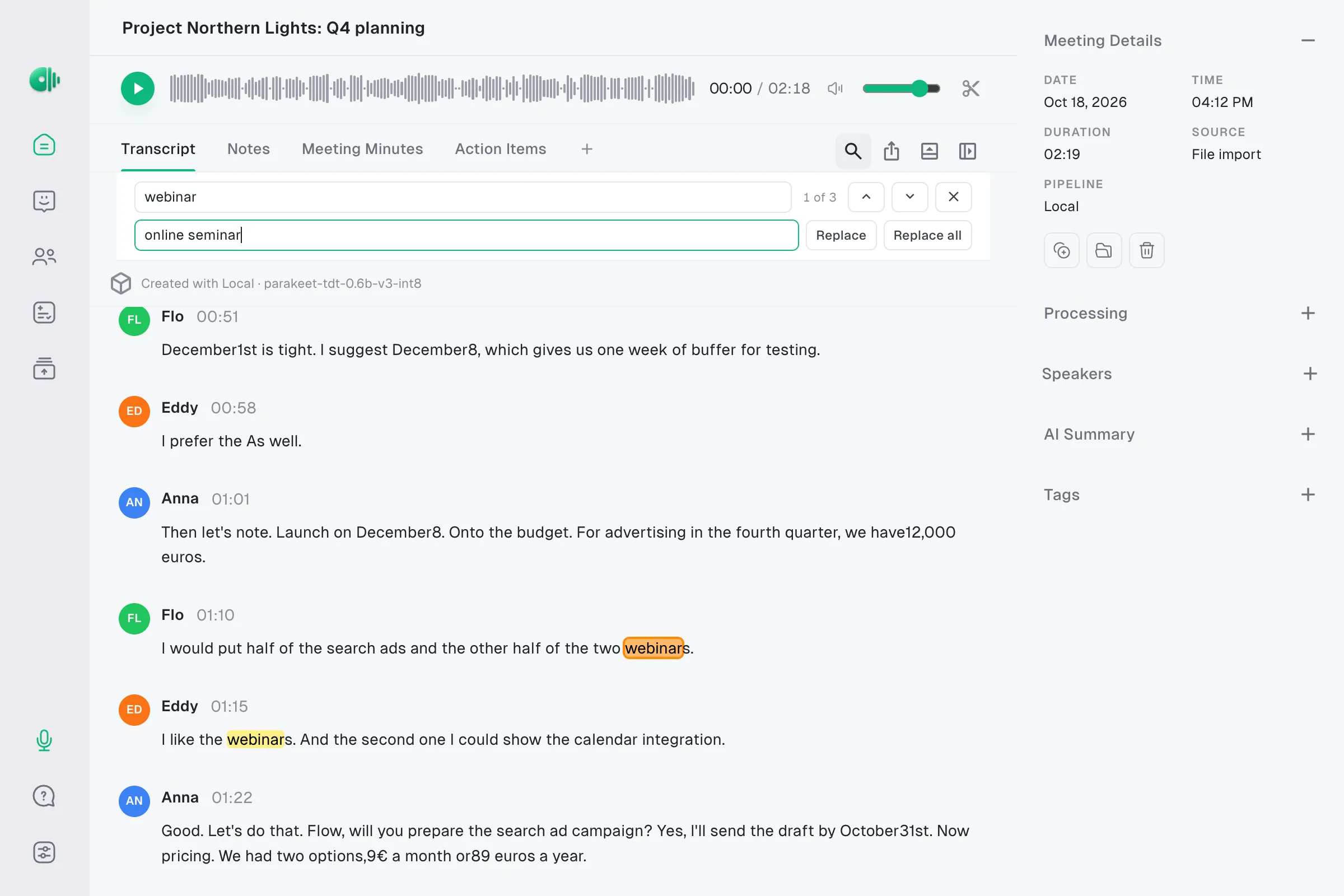
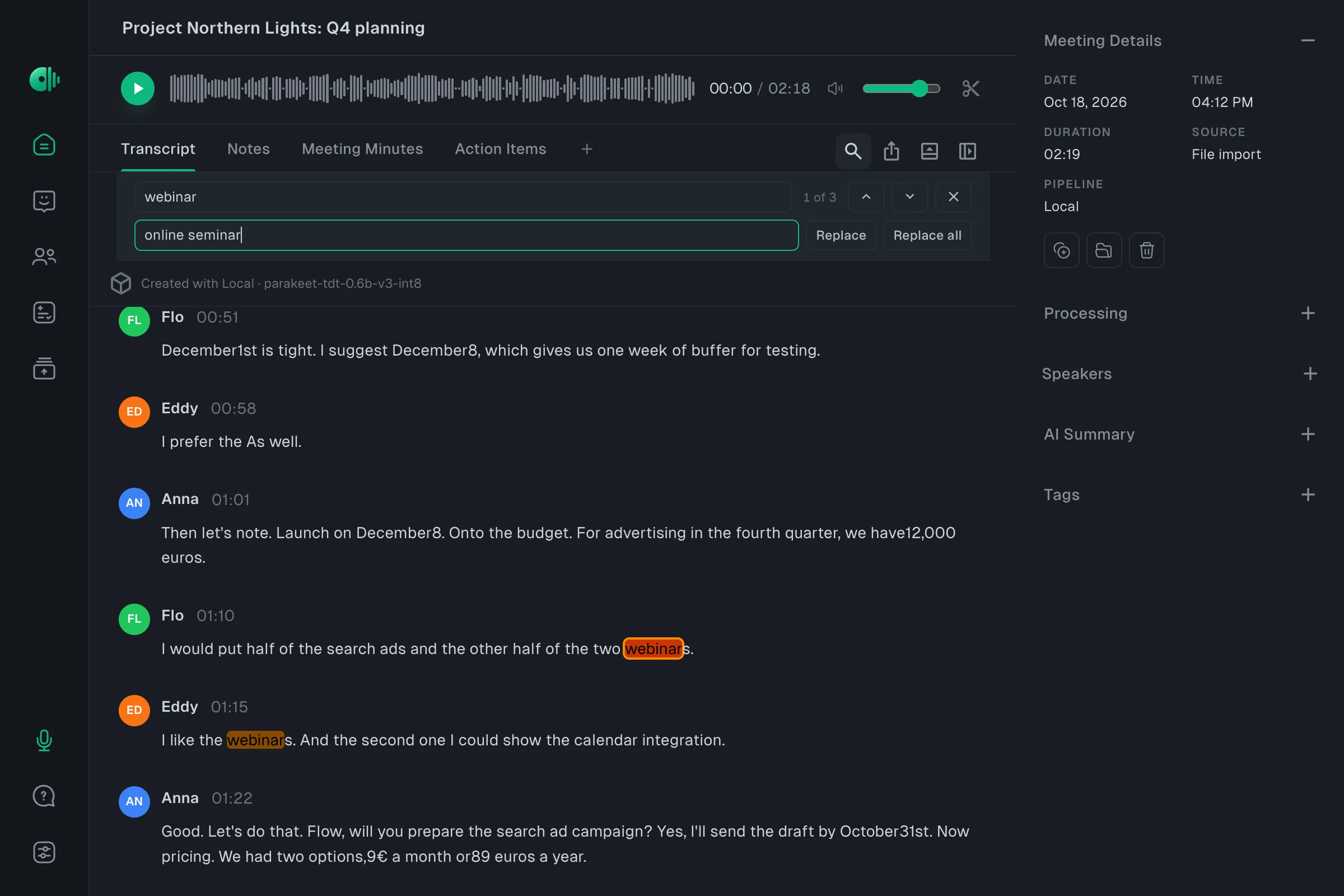
- Open the recording in the Transcript tab.
- Press Cmd+F (Windows: Ctrl+F) or click the magnifier (Search) in the tab bar.
- Type the search term into the Find field. Audicap highlights all matches and shows, for example, “2 of 5”.
- Enter jumps to the next match, Shift+Enter to the previous one. Esc closes the search.
The search ignores upper and lower case and looks for exactly the characters you typed.
Replace
Section titled “Replace”- Type the new text into the Replace with field.
- Click Replace for the highlighted match or Replace all for all matches.
Audicap saves the change right away and reports, for example, “Replaced 5 occurrences”. Timestamps and speakers stay as they are.
What does not work
Section titled “What does not work”- Free editing of the transcript does not exist. Double-clicking a sentence only jumps to that point in the audio. You change text only with find and replace.
- Undo does not exist. Replace the text back if needed.
- If you process the recording again, the transcript is created anew and your replacements are gone: Process a recording again.
Good to know
Section titled “Good to know”- In Notes and summaries, the magnifier opens a search bar of its own with the same buttons. You can also edit these texts directly there.
- If a sentence belongs to the wrong speaker, fix that through the speakers, not with replace: Assign and rename speakers.
- The library search does not find transcript text. Across all recordings, the chat helps: Ask your recordings.