
Your first recording
Here is how you get your first recording with a transcript and a summary in a few clicks.
Record
Section titled “Record”- In the bar on the left, click the red New recording button. Audicap creates a recording and opens it.
- Click Start Recording.
- Audicap reminds you to get consent from the participants. Confirm with Start recording.
- During the recording you can take notes in the Notes tab.
- At the end, click Stop & save, enter a title under Description and click Save.
Transcript
Section titled “Transcript”If you downloaded a speech model during setup, Audicap transcribes the recording by itself afterwards. The result is in the Transcript tab, with speakers and times.
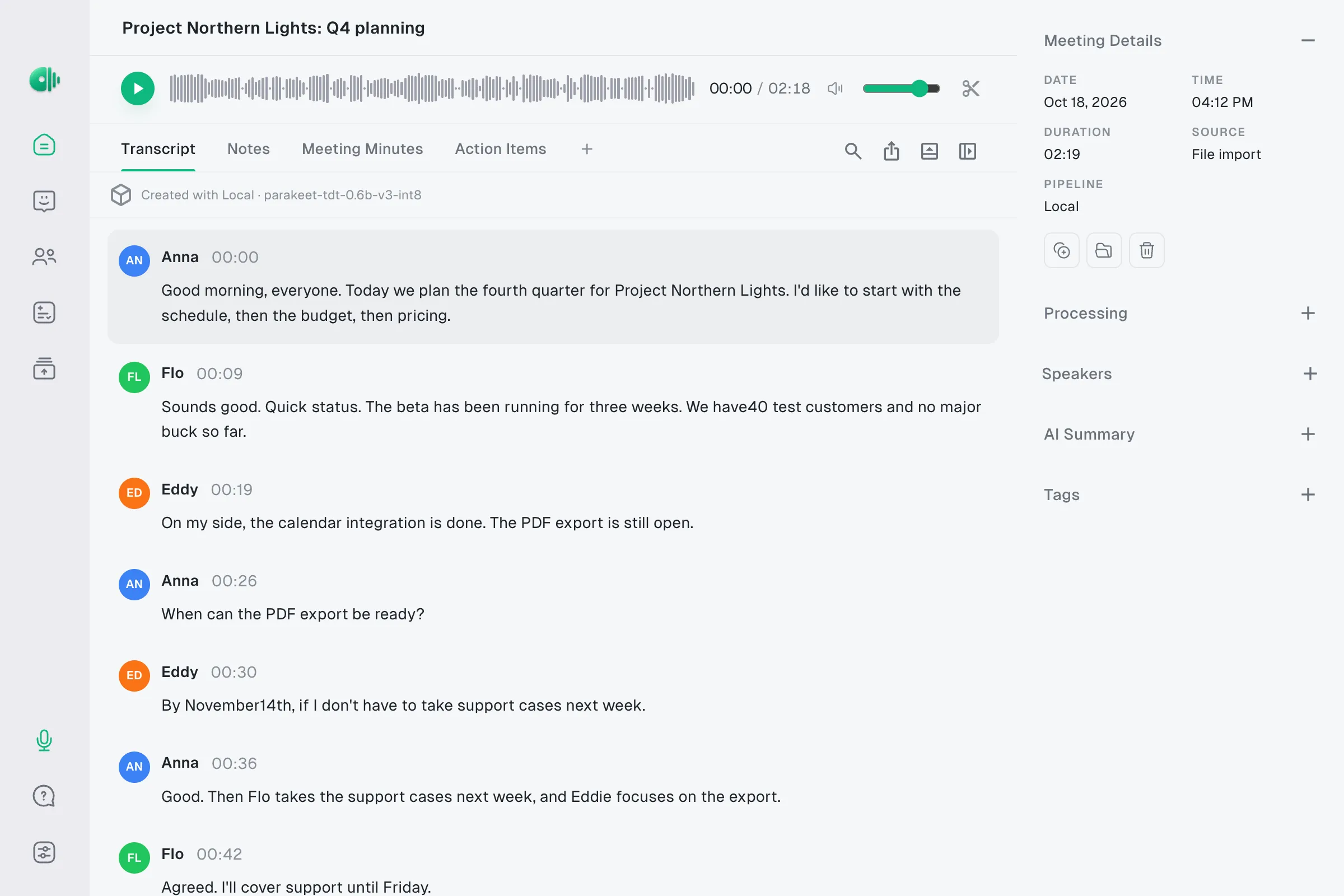
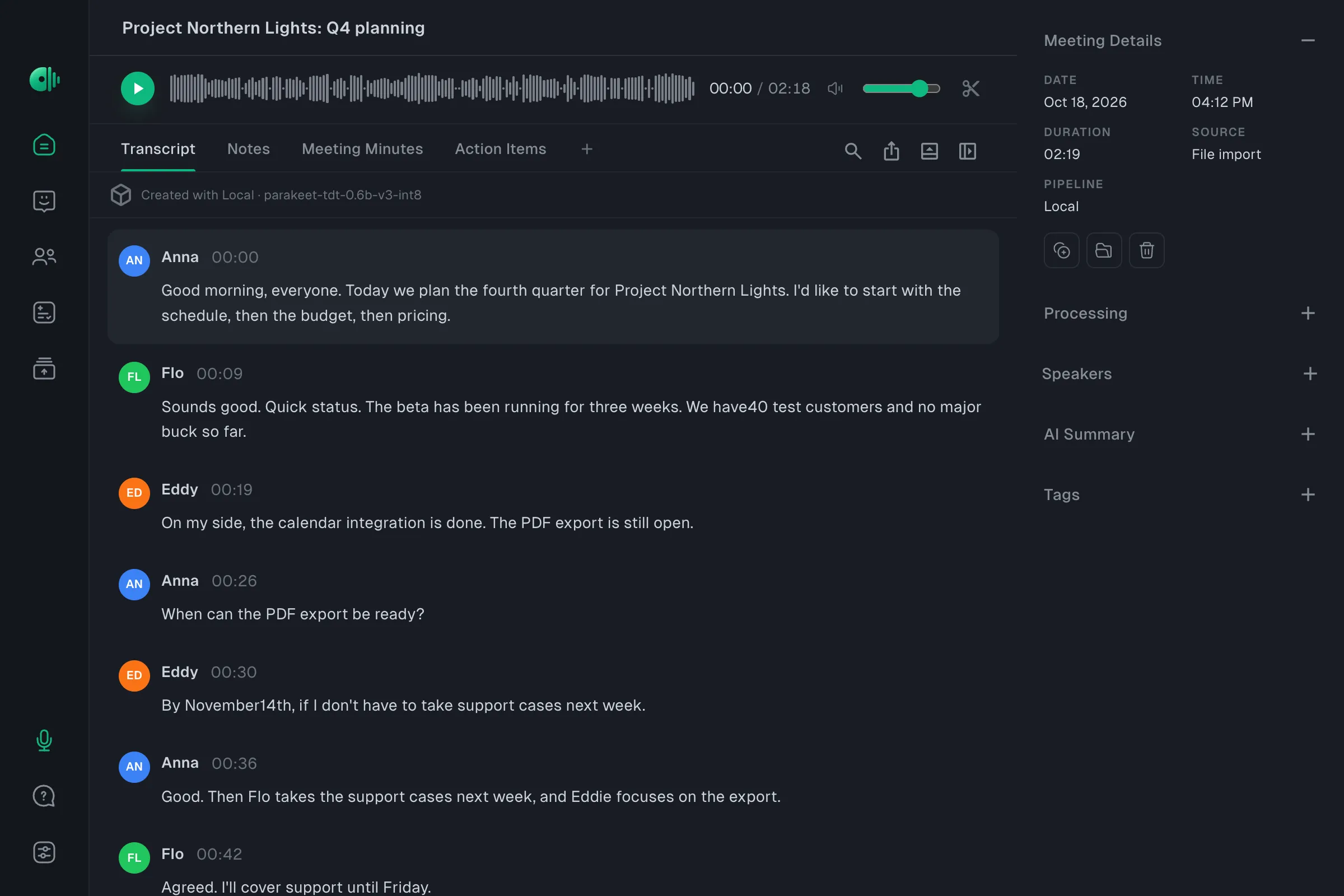
Without a speech model, click Process in the recording once you have downloaded one.
Summary
Section titled “Summary”Summaries need a local model or a cloud provider. If you didn’t download a summary model during setup, the AI Summary section shows the link Download a local model. See Local models or cloud providers.
- Expand AI Summary on the right.
- Under Template, choose for example Meeting Minutes.
- Click Start Summarization.
The summary appears in a tab of its own. To have this happen every time, switch on Summarize transcripts automatically under Settings → AI Summary.