
Import audio files
Already recorded a conversation with another program? Import the file, and Audicap treats it like a recording of its own.
How to
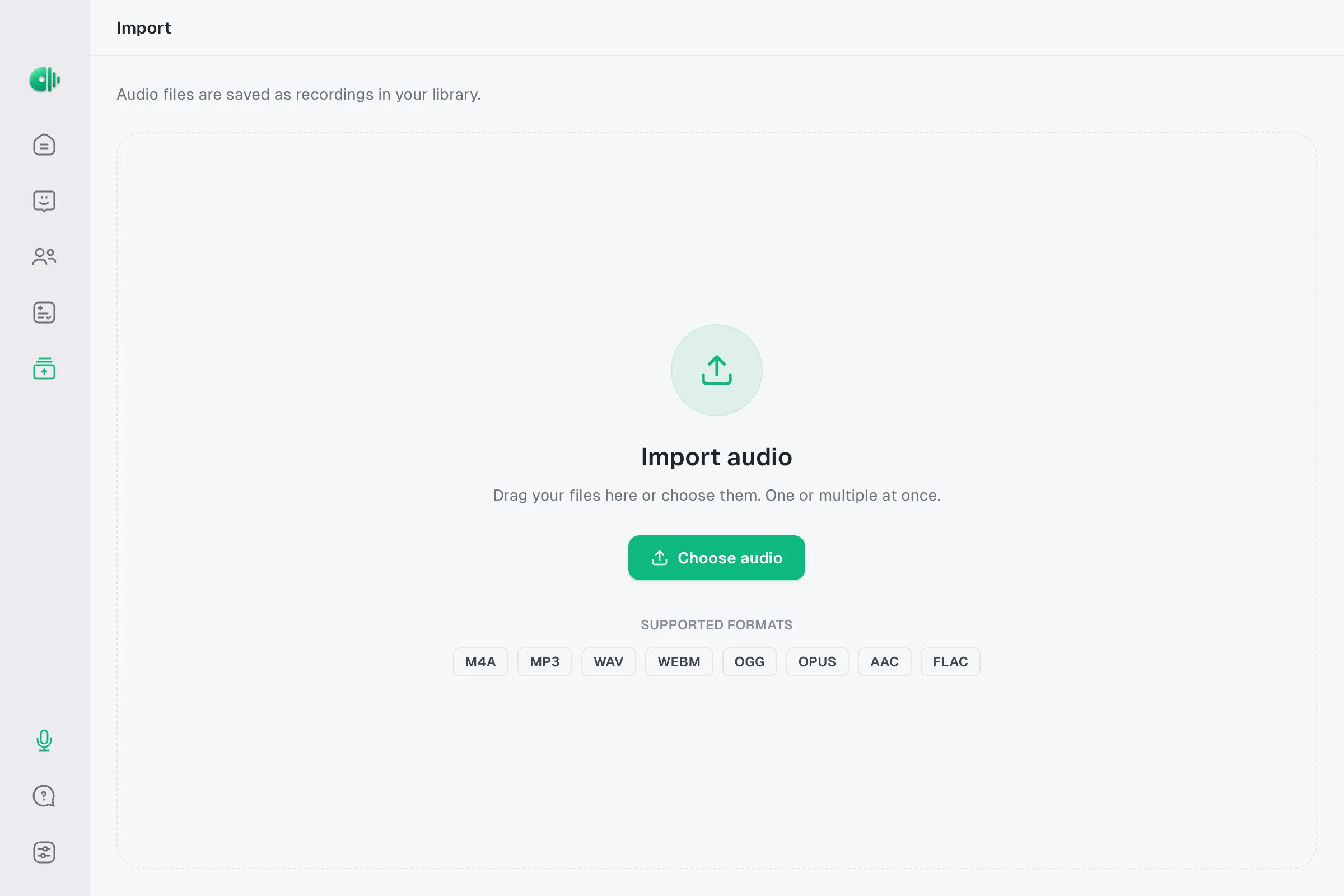
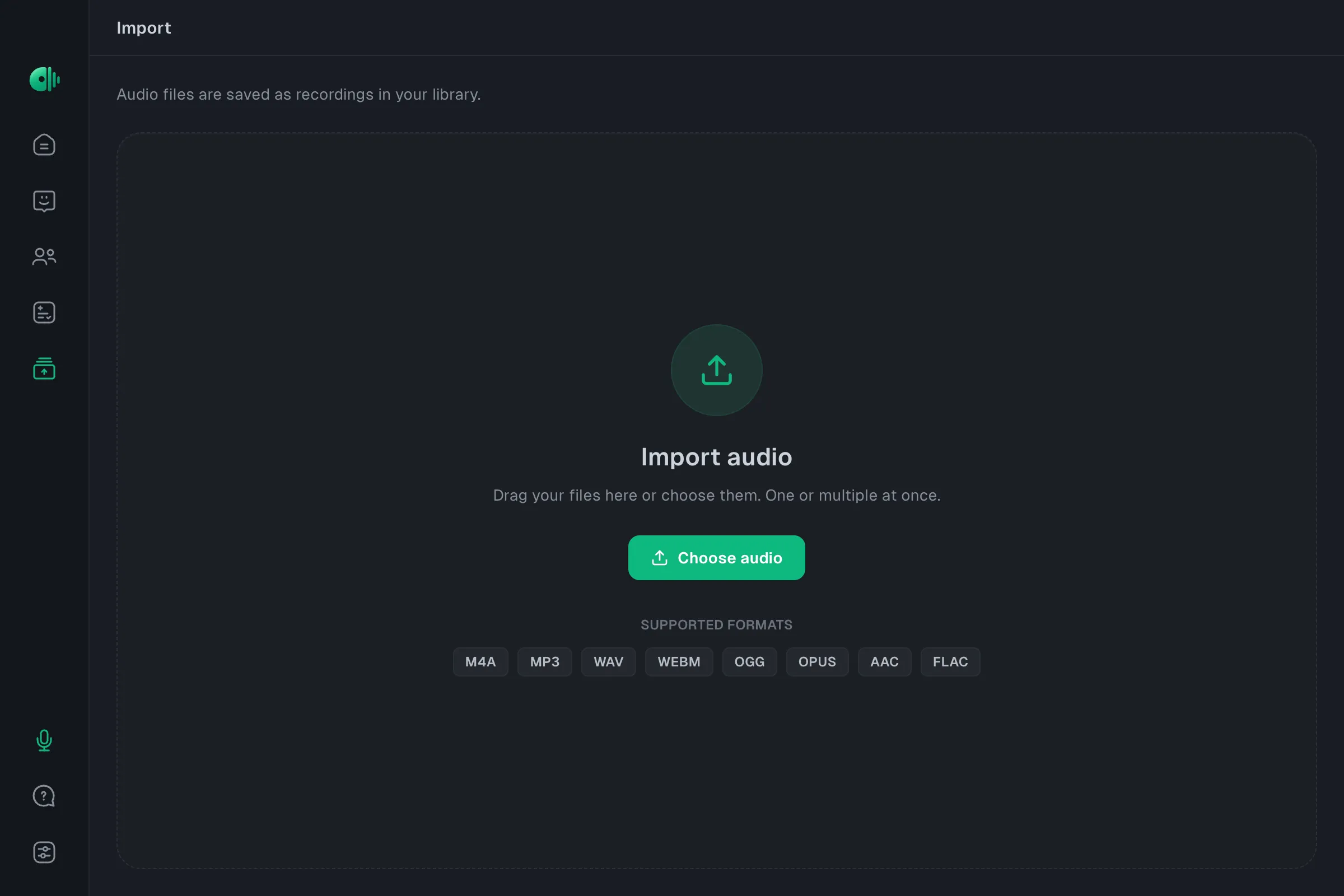
Section titled “How to”- In the bar on the left, click Import.
- Drag one or more files onto the Import audio area. Or click Choose audio and pick the files in the dialog.
- Audicap reports how many files were imported and opens the first one.
- There, click Process. First choose under Backend and Model what to transcribe with.
Importing does not start processing by itself, even when Transcribe recordings automatically is on.
Formats and limits
Section titled “Formats and limits”- Formats: M4A, MP3, WAV, WEBM, OGG, OPUS, AAC and FLAC.
- Size: 2 GB per file at most.
- Length: 12 hours per file at most.
- Several files at once are possible.
- Video files such as MP4 or MOV are not accepted. Save the audio track as an audio file first.
What happens on import
Section titled “What happens on import”- Audicap copies the file into its recordings folder. The original stays where it is.
- The title comes from the file name, without the extension. Underscores become spaces.
- The date is the time of the import.
- In the list, the recording shows Imported recording.
If a file does not work
Section titled “If a file does not work”If some files fail, Audicap stays on the Import page and lists under Imported and Failed what worked. Each failed file shows the reason:
| Message | What helps |
|---|---|
| “This file format is not supported.” | Convert the file to one of the formats above. |
| “This is not a file. Folders cannot be imported.” | Select the files in the folder instead of the folder. |
| “The file is larger than 2 GB.” | Split the recording or save it smaller, for example as M4A. |
| “The recording is longer than 12 hours.” | Split the recording into shorter parts. |
| “The file contains no audio track.” | Check that it is the right file. |
| “The file is damaged or not an audio file.”, “The file cannot be read as audio.”, “The file could not be read in time.”, “The length of the recording cannot be determined.” | Audicap could not read the file. Check the original file and import it again. |
| “The file could not be imported.” | Some other error, for example in the file system. Try again, otherwise contact support. |