
Setting up Audicap
On first start, Audicap walks you through setup. On the Mac there are five steps, on Windows four (without permissions). At the top right you choose the app’s Language.
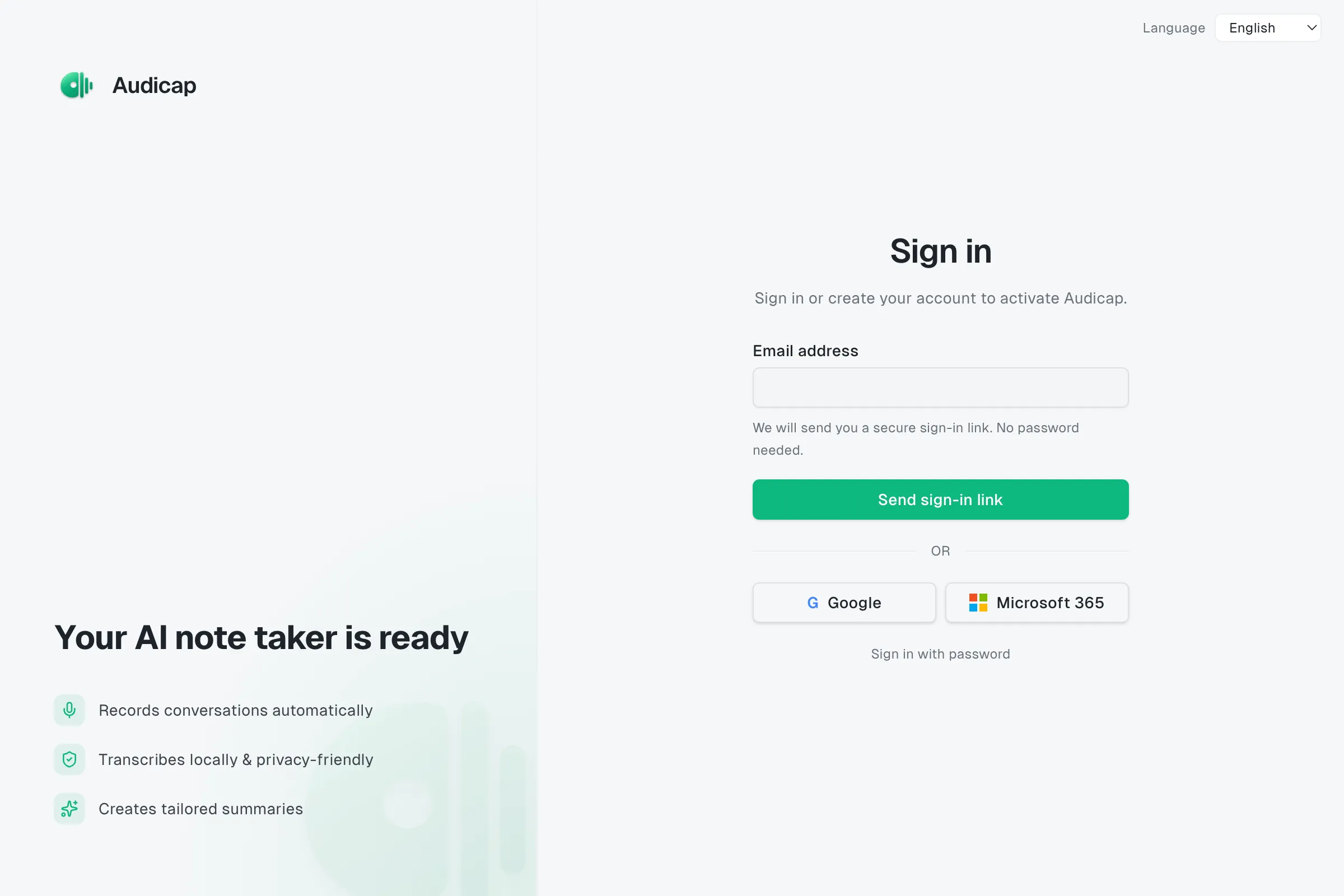
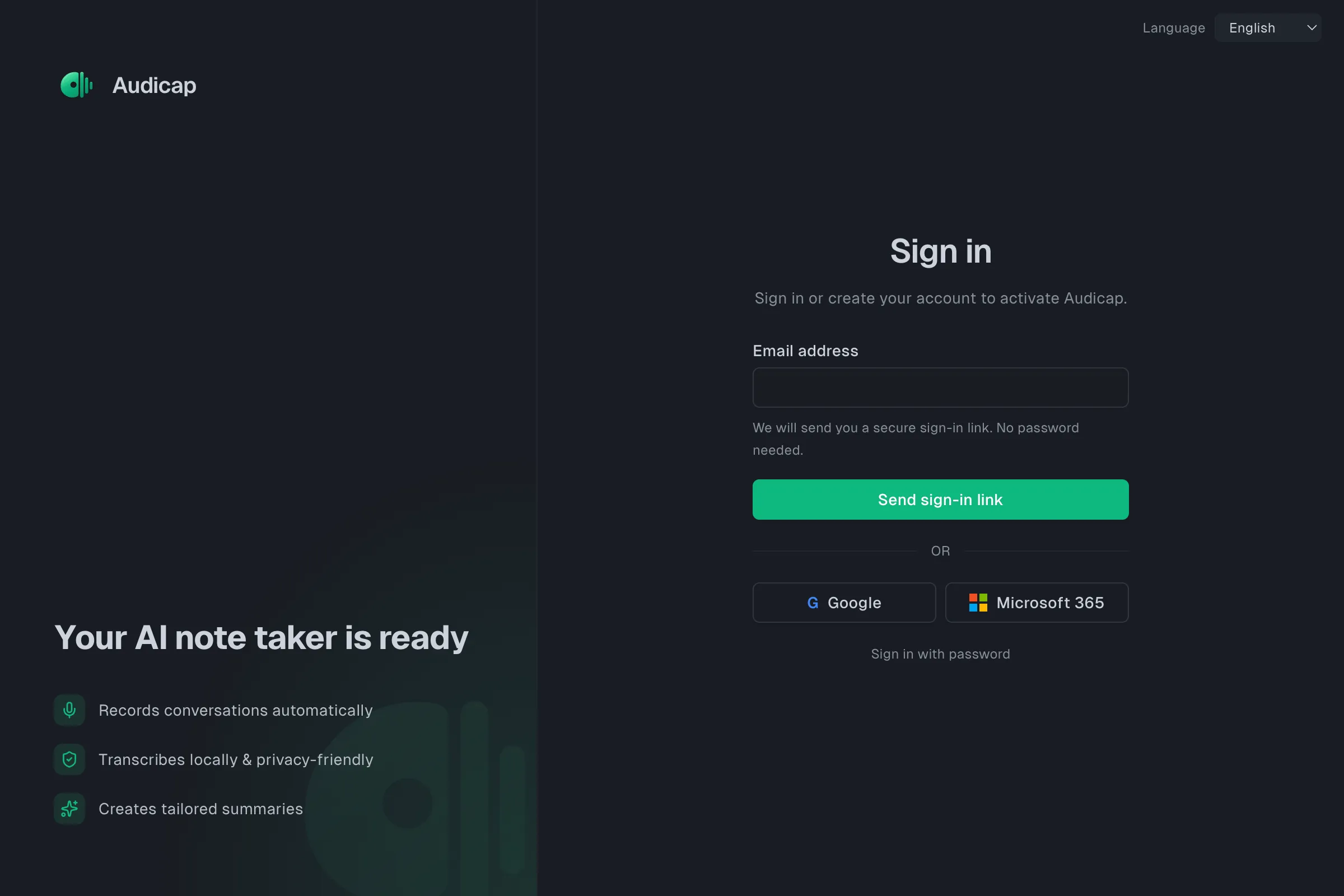
1. Sign in
Section titled “1. Sign in”Sign in or create your account:
- Send sign-in link: enter your email address. You get a secure link; no password needed.
- Google or Microsoft 365: Audicap opens the sign-in in your browser.
- Sign in with password if you have set a password.
Only account and license data is sent to the Audicap server. Your recordings, transcripts and summaries stay on your device.
2. Speech model
Section titled “2. Speech model”Here you set up local transcription. Three models are offered at the top:
- Parakeet Ultra (Multilanguage): recommended and preselected. Recognizes English, German and many other European languages on its own.
- Parakeet V3 (DE): built for German, fast and light.
- Whisper Large V3 Turbo Q5 (DE): built for German, very accurate, needs more processing time.
All other models are collapsed under More models. Click Download to load the selected model.
Downloads keep running in the background while you go through the next steps.
3. Summaries
Section titled “3. Summaries”Choose how Audicap creates summaries and tasks: Locally on this device, Cloud with your own key (Anthropic, OpenAI, Gemini, OpenRouter or your own server) or Later in the settings.
4. Permissions (Mac only)
Section titled “4. Permissions (Mac only)”Allow Audicap access to the Microphone and System Audio. After you allow system audio, Audicap asks for a restart. More in Permissions on macOS.
5. Calendar
Section titled “5. Calendar”Optionally connect Google Calendar, Microsoft Outlook or, on the Mac only, Apple Calendar. Audicap then shows your upcoming events and takes over titles and attendees. See Meeting detection and calendar.
6. Done
Section titled “6. Done”“Audicap is ready to open” sums up what is set up. Click Get Started.
Good to know
Section titled “Good to know”- Skip moves on to the next step. You can catch up on everything later in Settings: language under General, transcription model under Transcription, local summary models under AI Summary, calendars under Calendar.
- Once a speech model is downloaded, Audicap transcribes new recordings automatically. Without a model, automatic processing stays off until you download one.