
Create your own templates
If the included templates are not enough, you write your own. In Audicap they live on their own page called Recipes; in the AI Summary section you then choose them under Template.
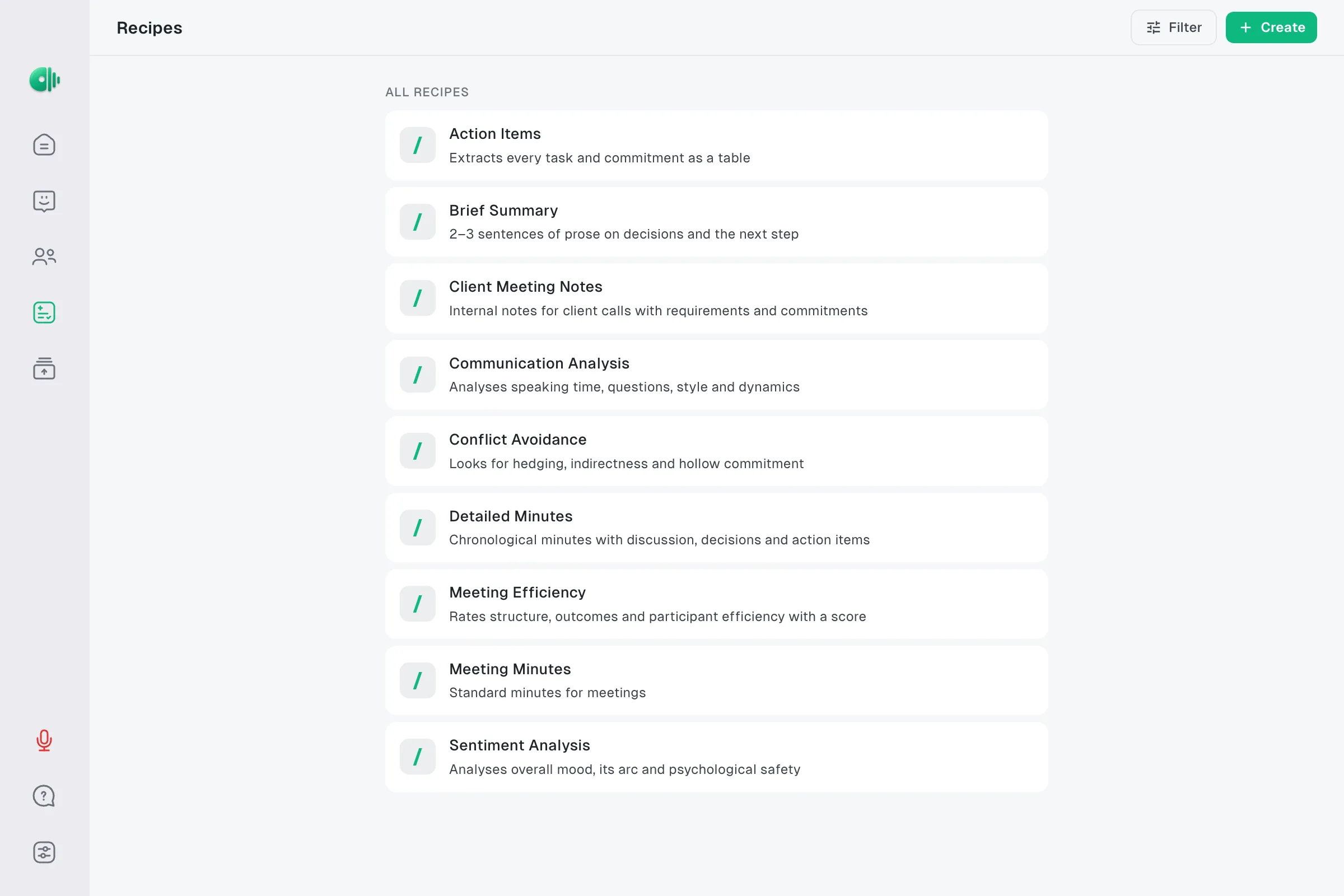
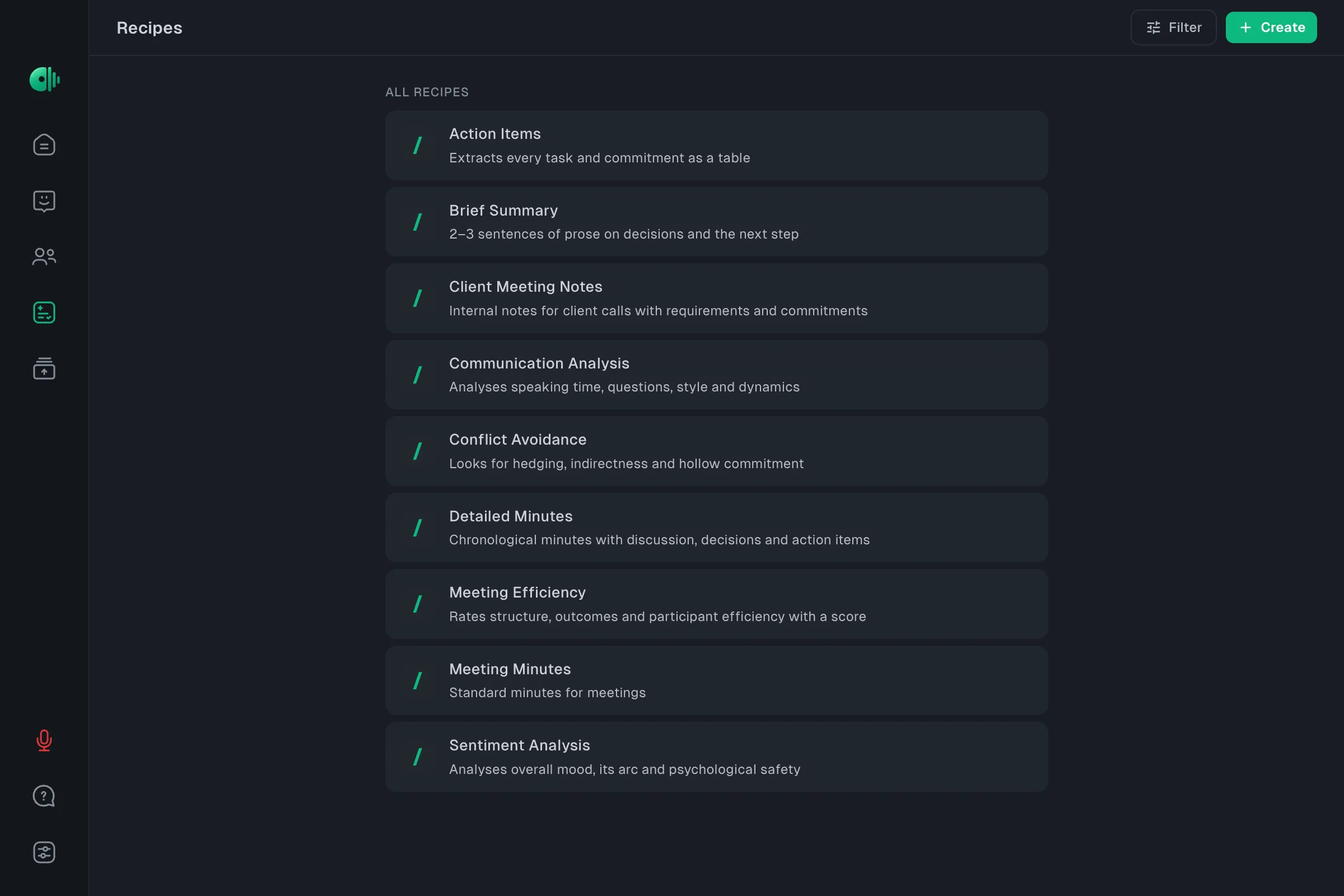
Create a new template
Section titled “Create a new template”- In the bar on the left, click Recipes.
- Click Create.
- Fill in the New Recipe form:
- Name (required, up to 100 characters)
- Description (optional, up to 300 characters)
- Scope: Per meeting for one summary per recording. Only these recipes appear under Template. Across meetings is meant for cross-cutting analyses.
- Category (optional)
- Prompt (required, 10 to 10,000 characters): your instruction for the model
- Click Create.
In the prompt you can use placeholders that Audicap fills in when summarizing: {{meetingTitle}},
{{transcript}}, {{participants}}, {{notes}} and {{date}}.
Adapt an included template
Section titled “Adapt an included template”- On the Recipes page, click the template or its pencil icon.
- Change name, prompt or category and click Save.
Edited templates show a dot with the note “Modified”. Reset to default brings back the shipped version; your changes are lost.
Delete a template
Section titled “Delete a template”Hover over the template and click the trash icon. Summaries that were already created are kept.
Good to know
Section titled “Good to know”- Language: the included templates exist in every language of the app. Your own and edited templates exist only in the language you wrote them in; a note below Summary language names them.
- Same name: if your own template has the name of an included one, Audicap shows it with “(own)”.
- Just once: for a one-off instruction you don’t need a recipe. Under Template, choose Custom prompt… and write your instruction into the text field. The result appears in the “Custom prompt” tab.