
Pause and resume
You can pause a recording at any time, for example during a coffee break. You can also reopen a recording you already saved and extend it, say for the second part of a workshop.
Pause during a recording
Section titled “Pause during a recording”- In the app: at the top of the recording, click Pause. The status changes to Paused. Resume records again.
- In the menu bar (Mac) or notification area (Windows): the first entry reads Pause recording or Resume recording, depending on the state.
- In the recording overlay: More actions holds Pause; while paused, Resume is the main button.
A paused recording is still open. The home page shows it as Paused recording: you can resume, save or discard it. There is no keyboard shortcut for pausing.
Continue a finished recording
Section titled “Continue a finished recording”- Open the saved recording.
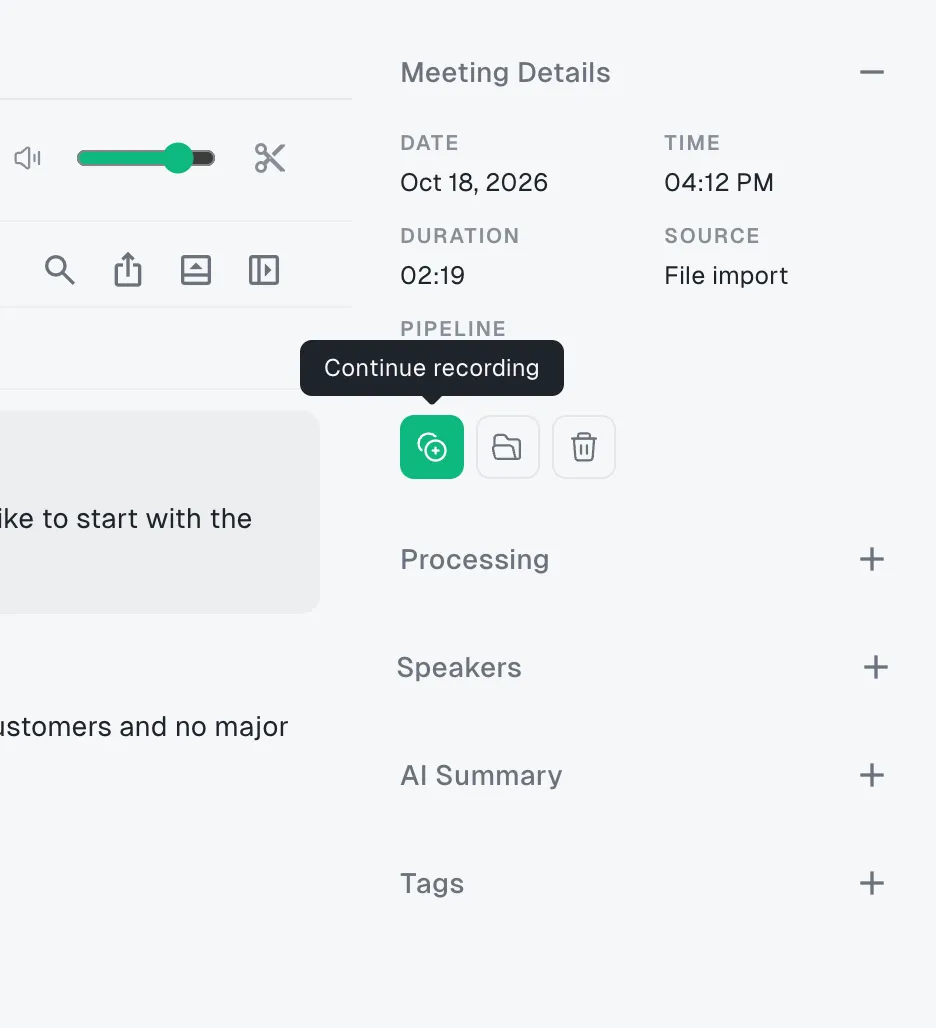
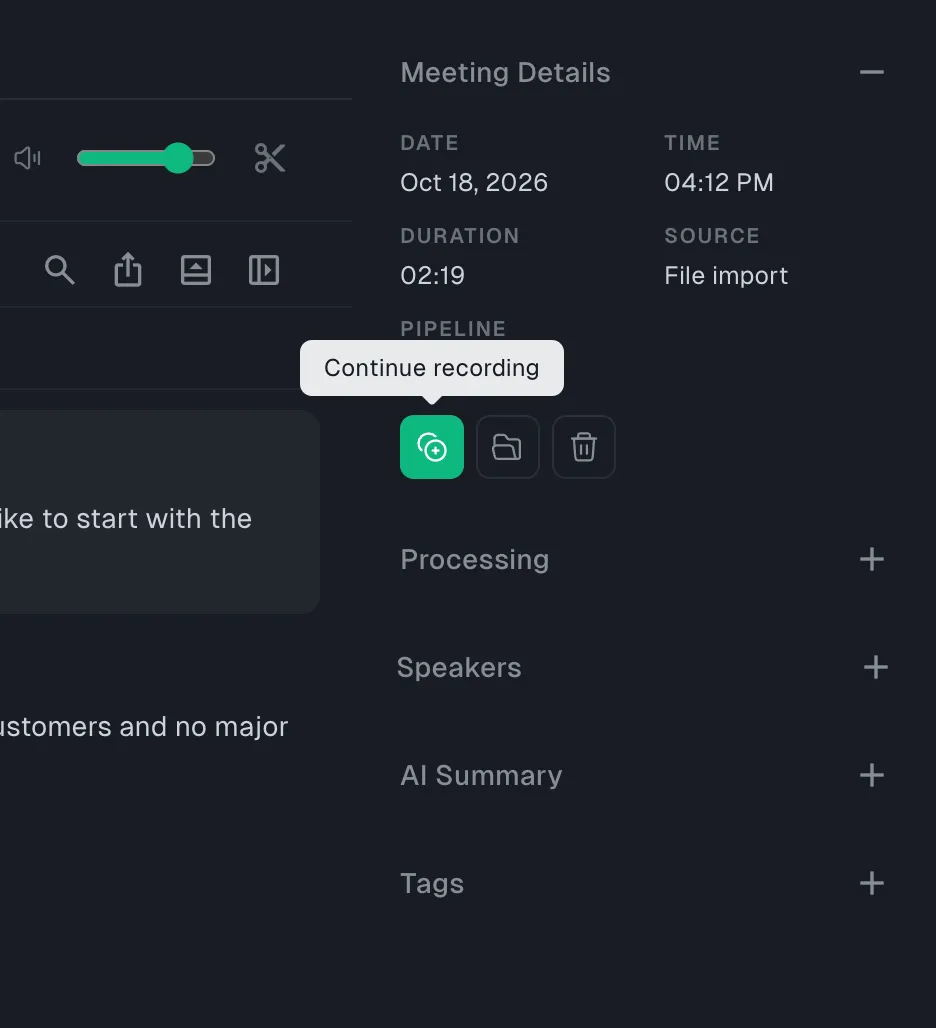
- On the right, in the Meeting Details section, click the Continue recording icon. Its name appears when you move the mouse over it.
- Confirm Continue recording? with Continue. Audicap reopens the recording and appends new audio to the existing file.
- End the new part as usual with Stop & save.
This works with recordings in M4A format, which includes everything Audicap records itself, and only while no other recording is running. Imported MP3 or WAV files cannot be extended.
The consent reminder does not appear when you continue. Get consent for the new part yourself.
If the microphone or a part is missing
Section titled “If the microphone or a part is missing”When you continue a finished recording or one shown as Paused recording on the home page, Audicap takes the microphone first. Only then does the new part start. If the microphone does not respond within 15 seconds, Audicap tells you. No empty part is created, and the recording stays open. Check the microphone and continue the recording again.
If one part of the recording has no usable audio, Audicap still saves all other parts. If only the microphone audio is missing, that part keeps its system audio. A notice after saving tells you how many parts are affected.
Process it again afterwards
Section titled “Process it again afterwards”The existing transcript stays unchanged, and Audicap does not process the continuation by itself. Audicap reminds you that the transcript does not cover the new part yet.
- On the right, expand the Processing section.
- Click Process again and confirm.
Transcript and speaker assignment are created anew; the summaries stay: Process a recording again.
Discard only the new part
Section titled “Discard only the new part”If you pause a continuation and click Discard, Audicap asks Discard continuation?. Only what was recorded since continuing is deleted. The saved recording stays intact.