
Spaces, tags and search
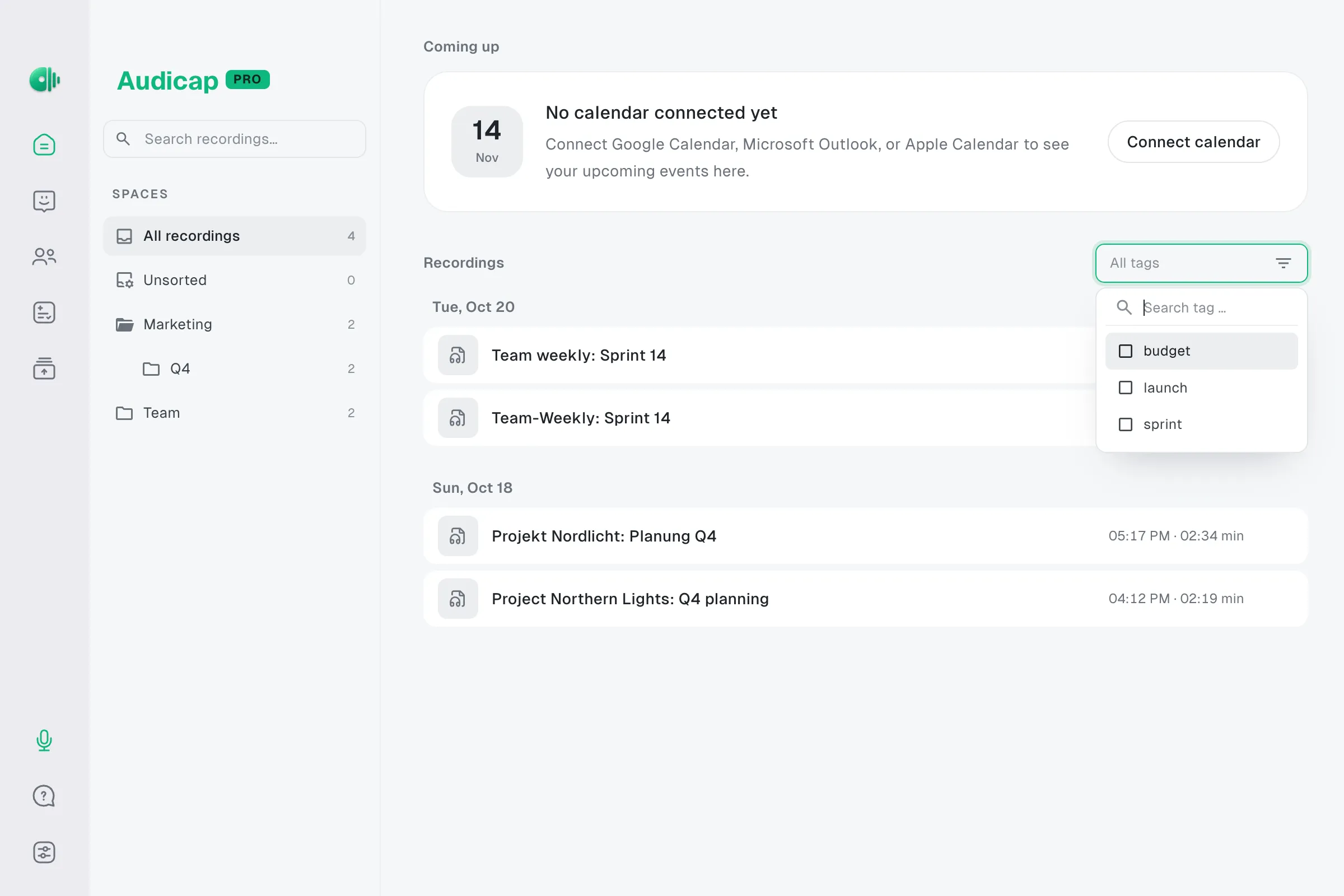
Spaces are folders for recordings, for example one per customer or project. Tags are keywords that cut across them. Both help you filter the library and ask questions in the chat.
Create a space
Section titled “Create a space”- In the library on the left, move the mouse over Spaces and click the plus (Create space).
- Type a name and press Enter. Esc cancels.
Sub-spaces
Section titled “Sub-spaces”A space can have sub-spaces, but only one level deep.
- Click the three dots next to the space to open its menu.
- Choose Move to… and the space it should go under. No parent space brings it back to the top.
You can also drag a space onto another one. A space that has sub-spaces of its own cannot be moved under another space. A parent space shows its own recordings and those of its sub-spaces.
Put a recording into a space
Section titled “Put a recording into a space”Each recording lives in one space at most.
- In the list, click the three dots next to the recording and choose Move to…. Remove from space takes it out again.
- Or drag one or more selected recordings onto a space in the left bar.
Unsorted shows all recordings without a space, All recordings the whole library.
Add tags
Section titled “Add tags”- Open the recording.
- On the right, in the Tags section, type into the field “Search or add tag…” and click Add tag. Under Existing tags, you pick one you already have.
A new tag is created the first time you add it. Audicap stores tags in lower case. A comma is not allowed in the name. You rename and delete tags under Settings → Spaces & tags → Manage tags.
Filter by tags
Section titled “Filter by tags”Above the list, choose one or more tags under All tags. With several, the list shows only recordings that carry all chosen tags. The filter works together with the chosen space and the search. It is always above the list, even before any recording carries a tag. It offers only tags that at least one recording carries. If there are none yet, it shows “No results”.
Search
Section titled “Search”The Search recordings… field searches titles, people and tags. It does not search the text of the transcripts.
- What was said you find with the chat: Ask your recordings.
- Within one recording, search with Cmd+F (Windows: Ctrl+F): Find and replace in the transcript.
Good to know
Section titled “Good to know”- Deleting a space removes only the space. The recordings stay.
- You rename a space with Rename in its menu. More options are under Settings → Spaces & tags.