
Back up and restore
A backup protects your recordings from a broken computer and takes them along to a new one. Audicap does not back up by itself; you create backups by hand.
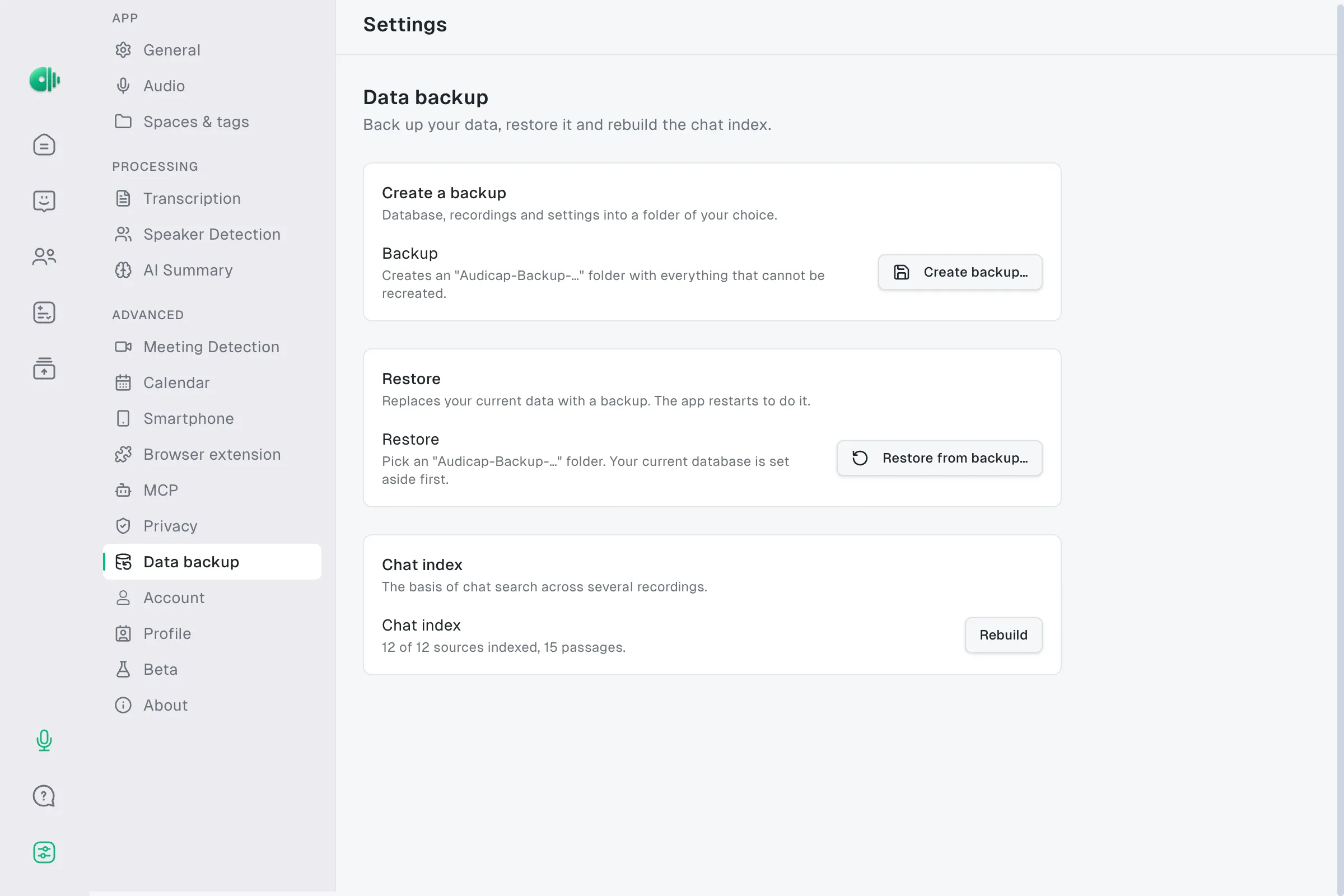
Create a backup
Section titled “Create a backup”- Open Settings → Data backup.
- Click Create backup… and choose a folder, for example on an external drive.
- Audicap creates an “Audicap-Backup-…” folder there with date and time. You see the progress in the settings.
This does not work during a recording or processing, while a recording is still open, or with a target inside the recordings folder itself. Audicap then tells you why.
What is in it
Section titled “What is in it”Included is everything that cannot be recreated:
- the database with transcripts, summaries, notes, speaker and voice profiles, spaces, tags, recipes and chats,
- the recordings folder with all audio files,
- the settings.
Not included:
- API keys and the sign-in to your account or calendar. On a new computer, you sign in again and enter the keys again.
- Models. Audicap downloads them again when needed.
- Recordings outside the recordings folder, for example after changing the storage location. Audicap tells you how many there are when backing up.
Restore
Section titled “Restore”- Open Settings → Data backup.
- Click Restore from backup… and choose the “Audicap-Backup-…” folder.
- Audicap shows what the backup contains, with date and version.
- Switch on Take the settings over as well if you want the settings back too. It is off by default.
- Click Restore and restart.
Audicap restarts and swaps the data on the way. Your current data is replaced.
What happens when you restore
Section titled “What happens when you restore”- The previous database stays next to the new one as a copy. Audicap does not delete it.
- The audio files go into the current recordings folder. If a file with the same name is already there, it stays unchanged.
- The storage locations for recordings and models always stay the ones of this computer, even if you take the settings over.
- A backup from a newer Audicap version cannot be restored. Update Audicap first.
- If Store voice profiles is off, Audicap deletes the voice prints that came back on start.
Good to know
Section titled “Good to know”- Under Chat index on the same page, you rebuild the chat’s search index: Ask your recordings.
- The backup is a plain folder, not encrypted. Keep it as safe as your computer.