
Start and stop a recording
Audicap records the microphone and system audio directly on your computer, without a bot in the call.
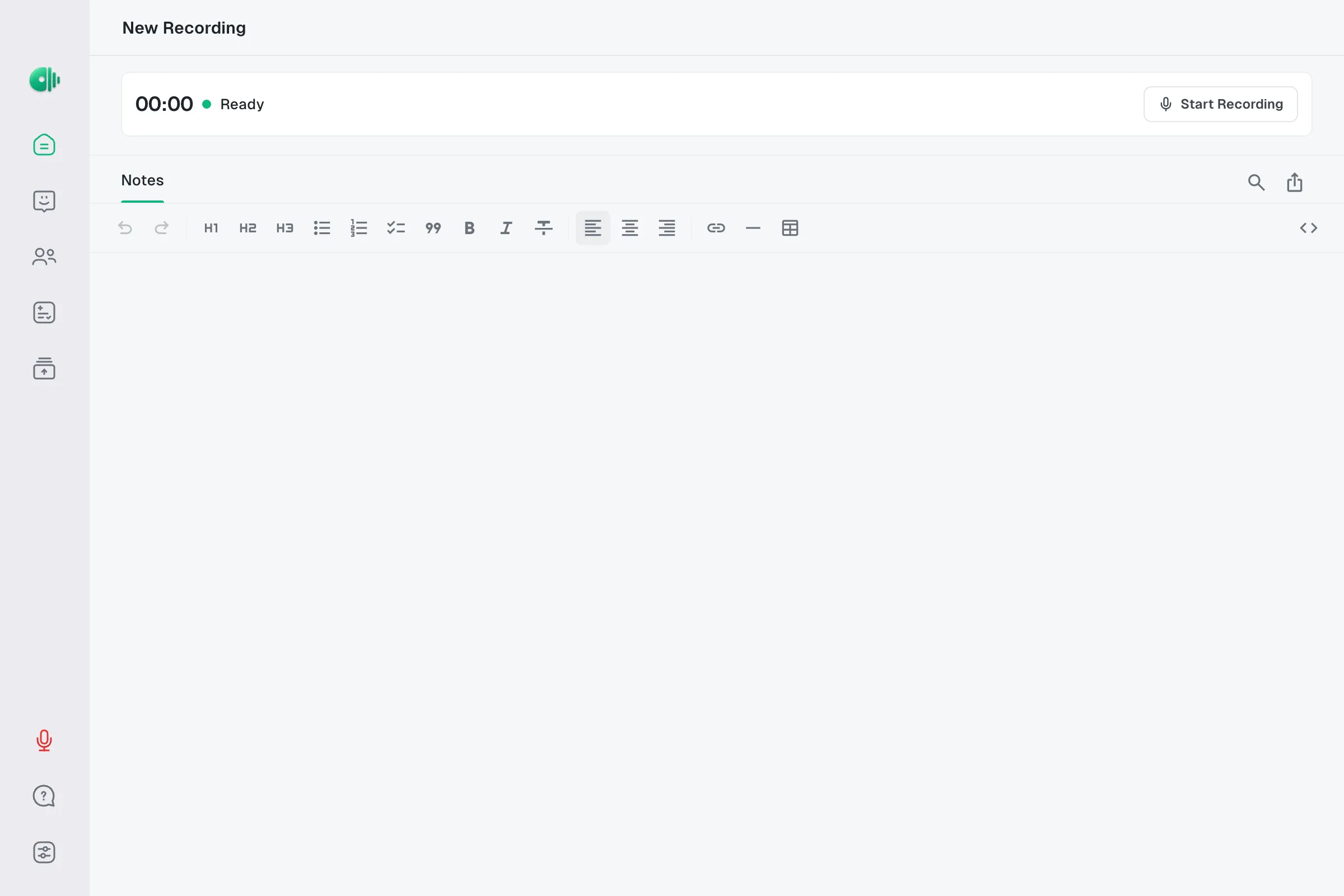
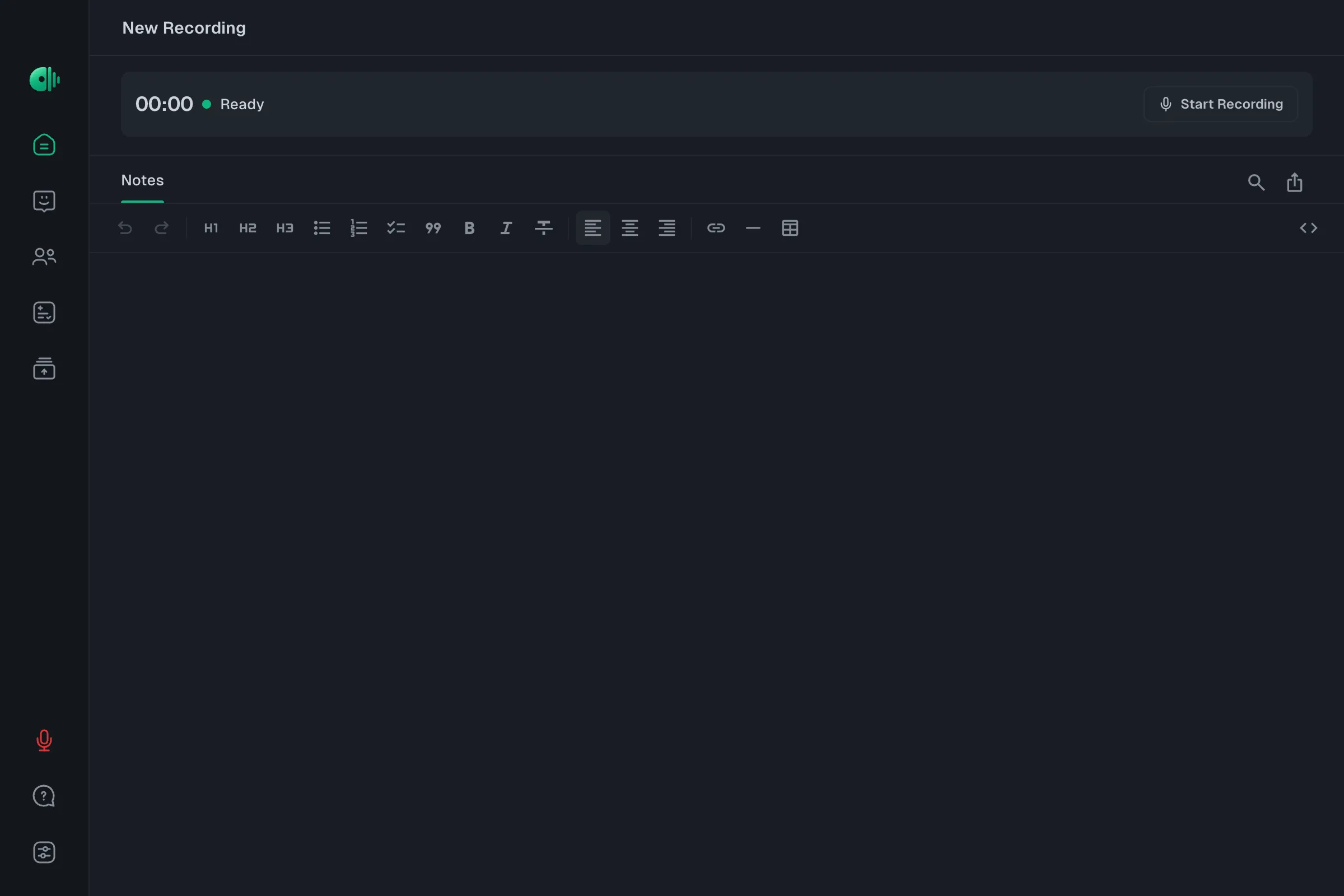
- In the app: in the bar on the left, click New recording, then Start Recording.
- From the menu bar (Mac) or the notification area (Windows): click the Audicap icon, then Start recording.
- From an event: if you click an event under Coming up on the home page, Audicap creates a recording with title and attendees. You then start it with Start Recording.
- Asked automatically: with meeting detection or a connected calendar, Audicap asks by itself. See Meeting detection and calendar.
Before every recording, Audicap reminds you to get consent from the participants. You switch this reminder off under Settings → Privacy → Consent Reminder.
During the recording
Section titled “During the recording”- Pause and Resume interrupt the recording and continue it.
- You take notes in the Notes tab; Audicap saves them by itself.
- What gets recorded, you set under Settings → Audio: Record System Audio and Record Microphone are on by default.
- The menu bar shows the running time. Show recording overlay brings up a small floating window with Save, Pause and Discard.
- Click Stop & save.
- In the Save Recording window, enter a title under Description.
- Click Save.
Cancel only closes the window; the recording stays open and can be resumed, saved or discarded. If you stop from the menu bar (Stop recording) or the overlay, Audicap saves without asking.
Afterwards Audicap processes the recording by itself if automatic processing is on.
Discard
Section titled “Discard”Pause the recording and click Discard. Audicap asks first, because what was recorded so far is deleted for good.
Good to know
Section titled “Good to know”- A recording that is still open keeps Audicap from quitting. Audicap then takes you there with Go to recording.
- There is no keyboard shortcut to start a recording.