
Ask your recordings
In the chat, you ask about the content of your recordings, for example “What did we decide about the budget?”. Audicap looks for the matching passages in transcripts, notes and summaries and lets an AI model answer from them.
How to
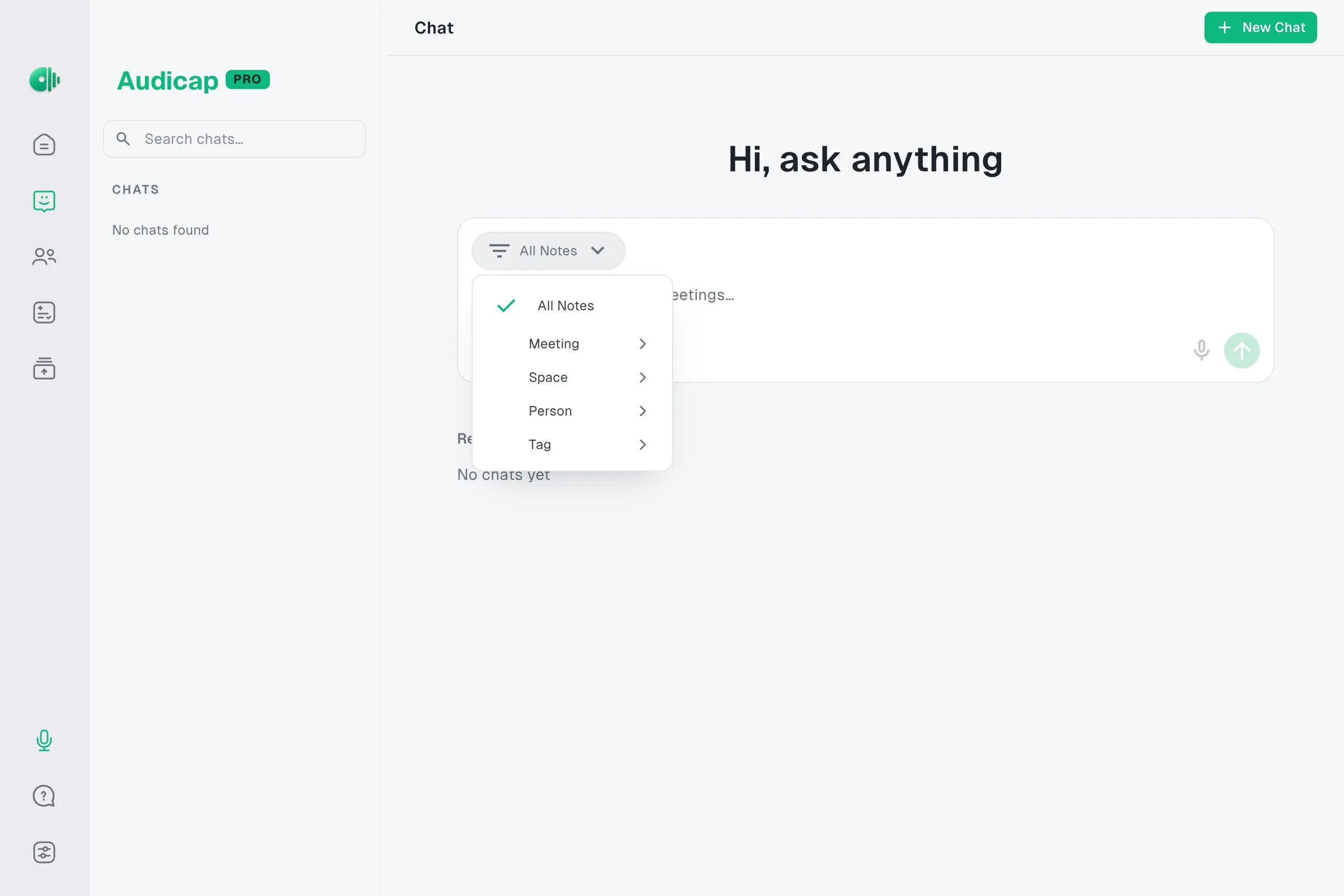
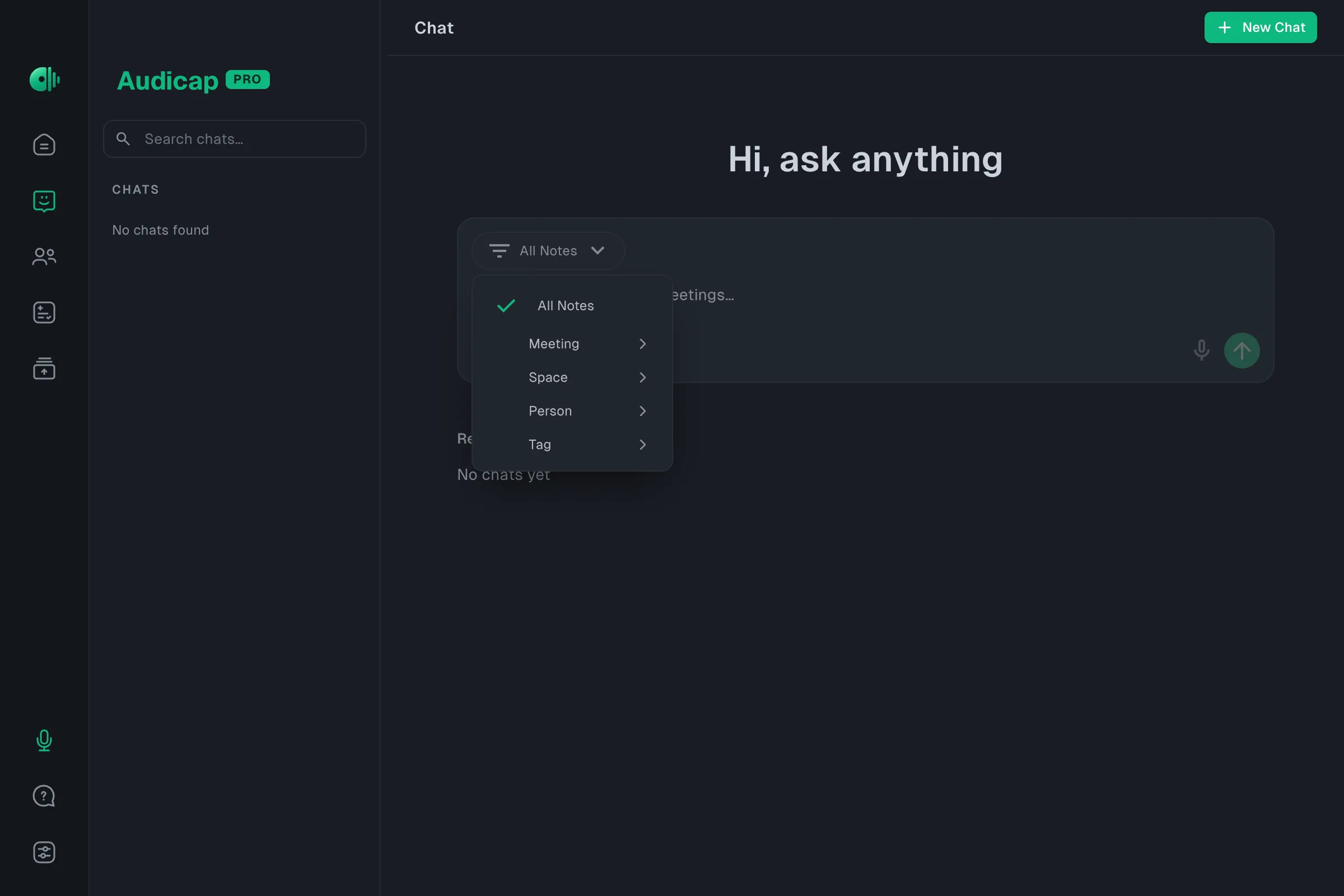
Section titled “How to”- In the bar on the left, click Chat.
- Choose the scope Audicap should search in (see below). By default it is All Notes.
- Choose the model if you want a different one from the suggested model.
- Type your question into the field “Ask anything about your meetings…” and send it with Send or Cmd+Enter (Windows: Ctrl+Enter). Enter alone starts a new line.
You choose scope and model before the first question. After that, both appear at the top of the chat and stay fixed for this chat. For another scope, click New Chat.
Scopes
Section titled “Scopes”| Scope | Searches in |
|---|---|
| All Notes | all recordings |
| Meeting | a single recording |
| Space | all recordings of a space, including its sub-spaces |
| Person | recordings in which a named speaker appears |
| Tag | recordings with this tag |
A scope appears only when there is something for it, such as a space with recordings or a named speaker.
Under Space you see the top-level spaces. A space with sub-spaces opens its own list: Whole space searches the space with its sub-spaces, below it you pick a single sub-space, such as one customer.
Which models
Section titled “Which models”You can choose the models you picked under Settings → AI Summary at Models (preselection): models on your computer (in Audicap or through Ollama) and cloud providers such as Anthropic, OpenAI, Gemini or OpenRouter with your own API key. The summary’s default model is suggested. If nothing is set there, the chat shows “No active chat model”. More in Local models or cloud providers.
Sources
Section titled “Sources”Below a finished answer, Sources lists the passages it is based on, in the order the answer cites them. Each source shows the recording’s title, the kind of passage and an excerpt. If an answer cites nothing, there is no list.
Clicking a source opens the recording at that passage. With the keyboard, reach it with the Tab key and open it with Enter.
| Source | Opens |
|---|---|
| Transcript · 1:29 | the Transcript tab at that time, with the cited passage marked |
| Notes | the Notes tab |
| Summary with its name | the tab of that summary |
| Metadata | the recording |
If you deleted a cited summary or it was replaced, for example when the recording was cut, the source stays listed but can no longer be opened. It then shows “This summary is no longer available”. If you delete a recording, its sources disappear from the answers. After a recording is cut, a transcript source may jump to a shifted time.
Limit of 50 messages
Section titled “Limit of 50 messages”A chat holds 50 messages, questions and answers counted together. After that, “Limit reached” appears and the input field is locked. Earlier messages stay readable. Continue with New Chat.
Manage chats
Section titled “Manage chats”- Recent Chats on the chat’s start page shows the three newest.
- The list on the left finds every chat with Search chats…. A chat’s menu offers Rename and Delete. Delete does not ask first.
The chat index
Section titled “The chat index”So that the chat finds content, Audicap builds an index. This happens by itself: on start, after new transcripts, notes and summaries, and before every question for the chosen scope.
If the chat reports “Some sources could not be indexed”, rebuild the index:
- Open Settings → Data backup.
- Under Chat index, click Rebuild. Audicap checks every recording and indexes only what has changed.
While it runs, the chat shows “Index is still being built”.
Good to know
Section titled “Good to know”- The chat answers from your recordings only. If they are not enough, the model is told to say so. Still check important statements against the sources.
- With a cloud model, the passages found and your question go to the provider. With a model on your computer, everything stays local.