
Assign and rename speakers
After processing, the speakers are called “speaker-1”, “speaker-2” and so on. A few clicks give them names. Audicap keeps the names as speaker profiles and recognizes known voices later.
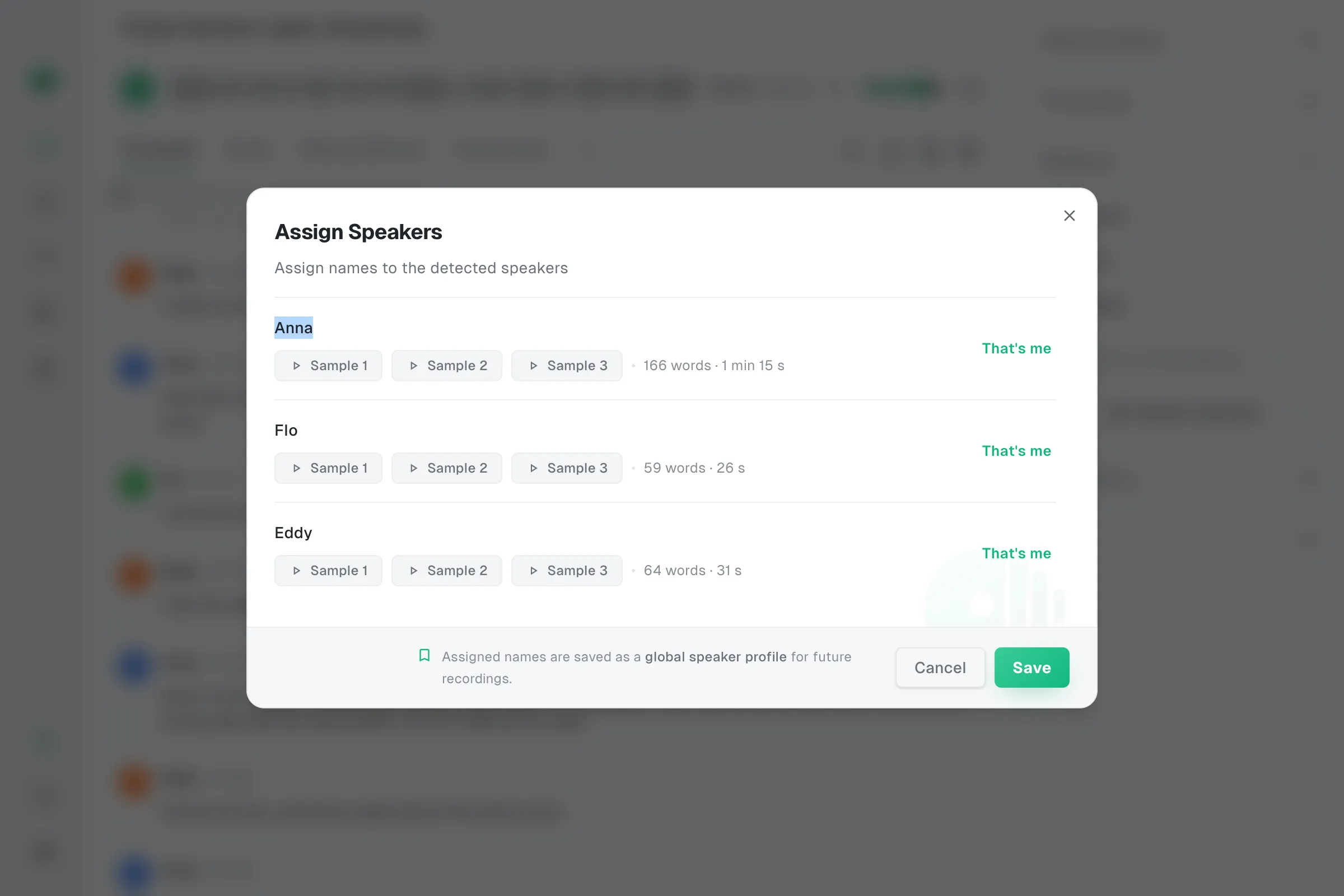
Assign speakers
Section titled “Assign speakers”Audicap opens the Assign Speakers dialog by itself after processing, once per recording, as long as there are unnamed speakers. Later, you open it on the right in the Speakers section with the Speaker detection button.
- Listen to the samples if needed (Sample 1, Sample 2 …).
- For each speaker, type a name into the field “Enter name …”.
- If you are one of the speakers, click That’s me in your row.
- Click Save.
That’s me fills in the name from Settings → Profile. If no name is set there yet, Audicap opens that page.
Global or this recording only
Section titled “Global or this recording only”- Save in the dialog applies the names to this recording and creates a global speaker profile for each name that does not have one yet. Audicap creates no profile for yourself.
- Rename in the Speakers section: click the three dots next to the speaker and choose
Rename.
- A speaker who is still unnamed (“speaker-1”) is named in this recording only.
- A speaker who already has a name is renamed everywhere: in the profile and in all transcripts.
Audicap offers no choice between the two. If you want to change a name in one recording only, assign the passages to another speaker instead (next section).
Assign a speaker to a passage
Section titled “Assign a speaker to a passage”If detection gave a sentence to the wrong person, fix it like this:
- Select the text in the transcript with the mouse.
- On the right, in the Speakers section, “Selection: … words” appears with a preview.
- Click the assign button next to the right speaker (Assign selection to …). If the person is missing, type their name into “Search or create speaker…” and choose Create “…”.
Audicap splits the passage at the edges of the selection and reports “Selection assigned”. A newly created name becomes a speaker profile right away.
Recognize voices
Section titled “Recognize voices”With Store voice profiles on (the default), Audicap keeps a voice print for each named speaker. In new recordings, the dialog then suggests names: “Recognized by voice” or “Voice suggestion”. Check the suggestion and click Save. More in Manage and merge speakers.
Good to know
Section titled “Good to know”- While a search in the transcript is active, you cannot select text. Close the search with Esc.
- If you process a recording again, the speakers are created anew and you assign them once more.