
Transcribe on your device or in the cloud
By default, Audicap transcribes on your computer: offline and free. For especially difficult recordings, you can use an online service with your own API key instead.
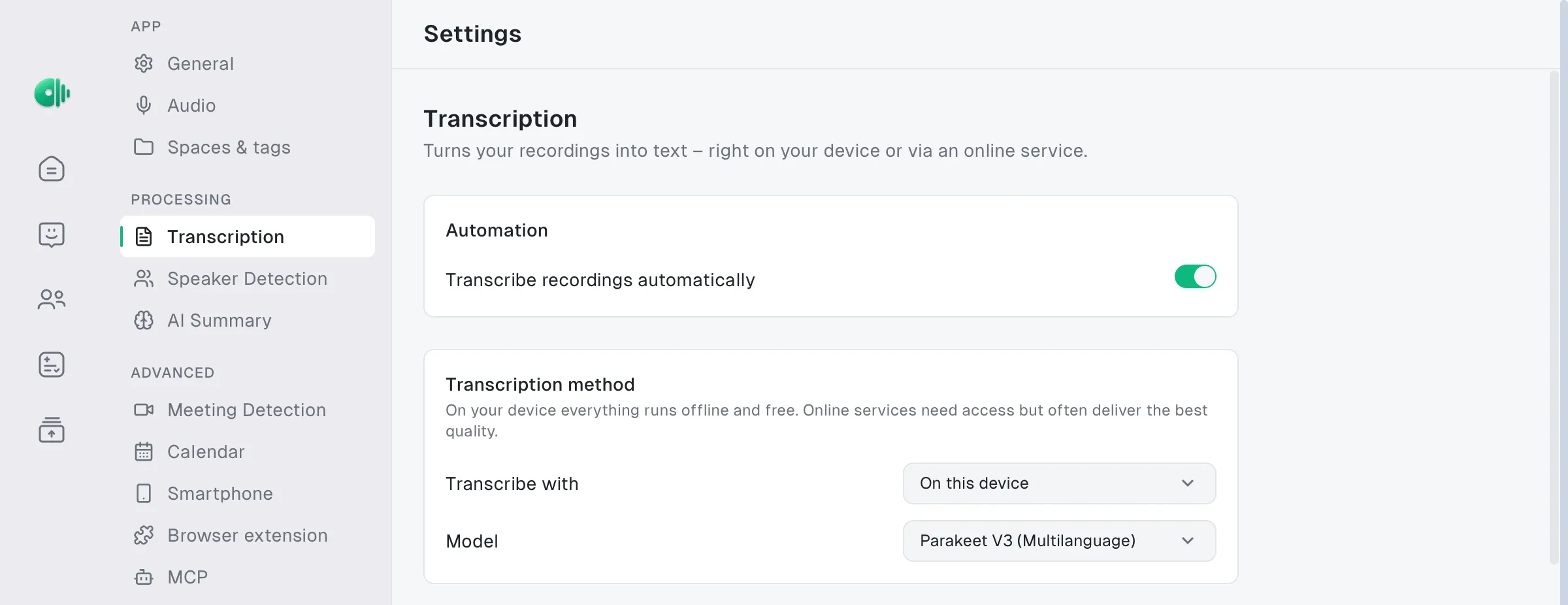
Choose the method
Section titled “Choose the method”- Open Settings → Transcription.
- Under Transcription method, choose at Transcribe with:
- On this device, then the Model below, or
- an online service: AssemblyAI, ElevenLabs or Deepgram.
An online service appears only once its key is saved. A model on your device appears only once it is fully downloaded. This choice applies to new recordings. You can process a single recording again later with another model: Process a recording again.
Models on this device
Section titled “Models on this device”| Model | Size | Languages |
|---|---|---|
| Parakeet Ultra (Multilanguage) | 529 MB (Mac), 739 MB (Windows) | 25 European languages, including German, English, French, Spanish. Recommended. |
| Parakeet V3 (Multilanguage) | 670 MB | 25 European languages, including German, English, French, Spanish. Set by default. |
| Parakeet V3 (DE) | 1.2 GB (Mac), 641 MB (Windows) | German |
| Whisper Large V3 Turbo Q5 (DE) | 574 MB | German |
| Whisper Large V3 Turbo FP16 (DE) | 1.6 GB | German |
| Whisper Large V3 Turbo Q8 (Multilanguage) | 874 MB | Detects the language automatically, ten languages |
A model on your device carries its own language: a DE model transcribes German only. To download and delete models, see Manage models and storage.
Online services
Section titled “Online services”| Service | Note |
|---|---|
| AssemblyAI | Under Speech model, choose Universal 3.5 Pro (default) or Universal 2. |
| ElevenLabs Scribe | Paste the full key beginning with sk_, not the key ID. |
| Deepgram | Fast, with a fixed model. |
To add a key:
- Open Settings → Transcription and scroll to Online services.
- Expand the service. Get a key takes you to the provider’s sign-up.
- Paste the key into the API-Key field and click Test.
After a successful check, the service shows Connected. Audicap stores the key encrypted on your computer. With an online service, the audio file goes to the provider, and the provider bills you through your key.
Region of the online services
Section titled “Region of the online services”For each online service you choose the Region: EU or Global. Audicap then sends the requests only to the endpoint of that region and never switches to the other one on its own after an error.
| Service | Default | EU |
|---|---|---|
| AssemblyAI | EU | no further requirements |
| Deepgram | Global | selectable |
| ElevenLabs Scribe | Global | only with an Enterprise account in ElevenLabs’ EU environment, which uses its own key |
Only AssemblyAI processes in the EU by default. The other services stay on Global until you choose EU.
Live transcript over the cloud (Beta)
Section titled “Live transcript over the cloud (Beta)”Under Settings → Beta, you switch on the Live transcript and choose under Service AssemblyAI (cloud) or Local (on this device). The live transcript is off by default. When you switch it on, the cloud is preselected if your AssemblyAI key is saved and AssemblyAI has accepted it in the region you set; otherwise it starts locally where that is possible. More under Beta features.
- The live transcript uses the same Region as transcription with AssemblyAI under Online services: EU (the default) or Global. There is no separate switch for it; the line under the service names the region that applies.
- With EU, the audio goes continuously to the EU endpoint of AssemblyAI during the recording, and audio and transcript are processed in the EU data zone. With Global, it goes to the standard endpoint, and AssemblyAI processes it at its locations in the US or in the EU. AssemblyAI stores the account and usage data of your AssemblyAI account in the US in either case.
- A recording keeps the region it started with. If you change the region, switch the live transcript on again, and AssemblyAI checks your key in the new region. After an error, Audicap never switches to the other region on its own.
- AssemblyAI bills you through your key.
- If the connection fails, the live transcript stops and the recording continues. Audicap does not switch to local in that case.
- The live transcript is provisional. The final transcript is created after the stop, as before.
- Meeting Details shows Live: AssemblyAI (EU) or Live: AssemblyAI (Global) for the recording.
- If Audicap writes a recording notice into the meeting chat, it adds a sentence: live transcription runs via AssemblyAI, and audio and transcript are processed in the EU data zone (with Global: in the US or in the EU).
Spoken language for online services
Section titled “Spoken language for online services”Under Settings → General → Language, you set the Spoken language (cloud transcription): Automatic, Deutsch, English, Français, Español or Italiano. By default it is Automatic, and the service detects the language itself.
This setting applies to AssemblyAI, ElevenLabs and Deepgram only. Models on your device ignore it.
Good to know
Section titled “Good to know”- Transcribe recordings automatically (on by default) starts processing after every recording with the chosen method.
- On the Mac, Prepare transcription on start loads the model when the app opens, so the first transcription starts without delay.