
Manage models and storage
To work on your computer, Audicap downloads models from the Audicap server: for transcription, for speaker detection and, if you want, for the AI summary. After that they run offline.
Transcription models
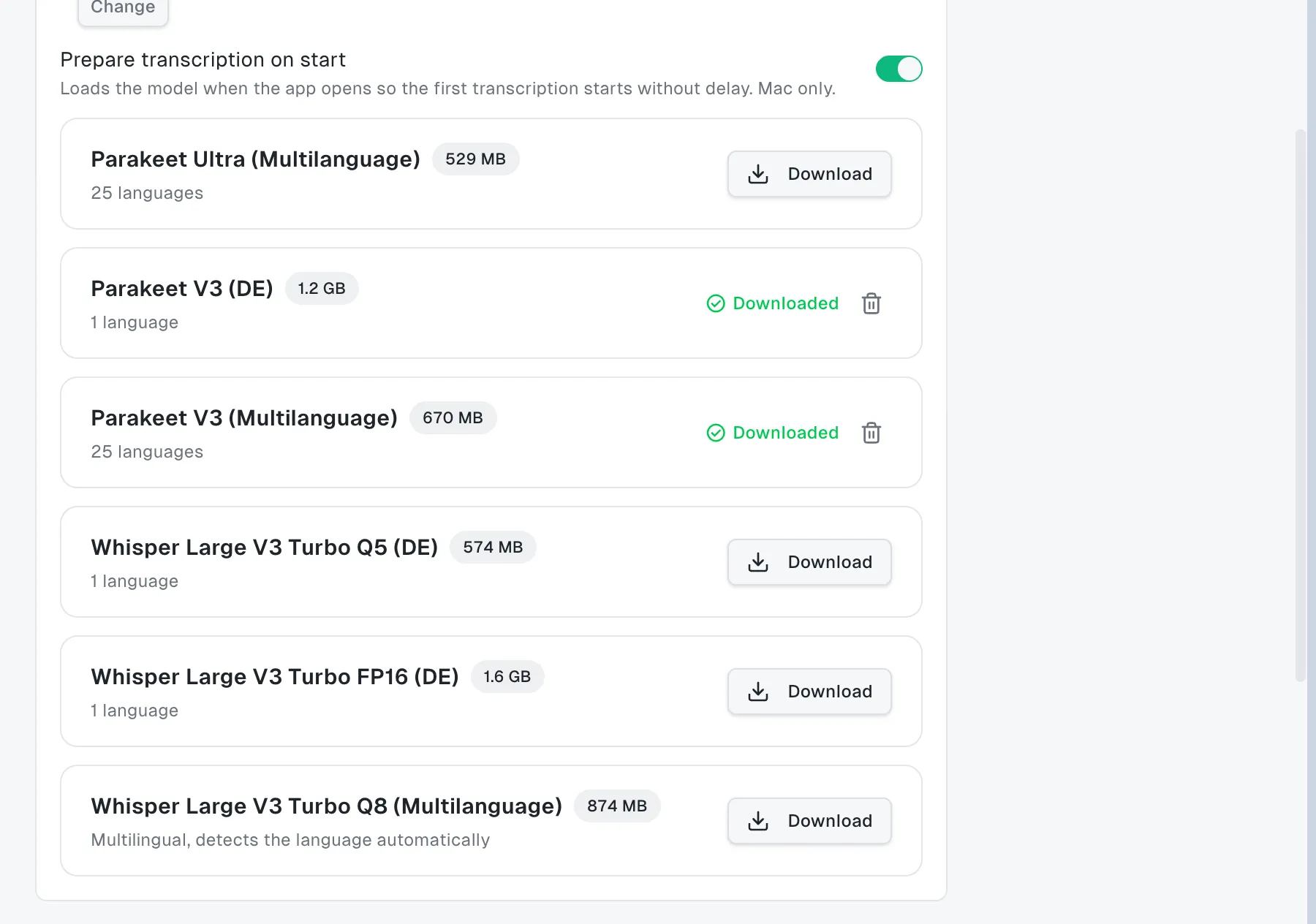
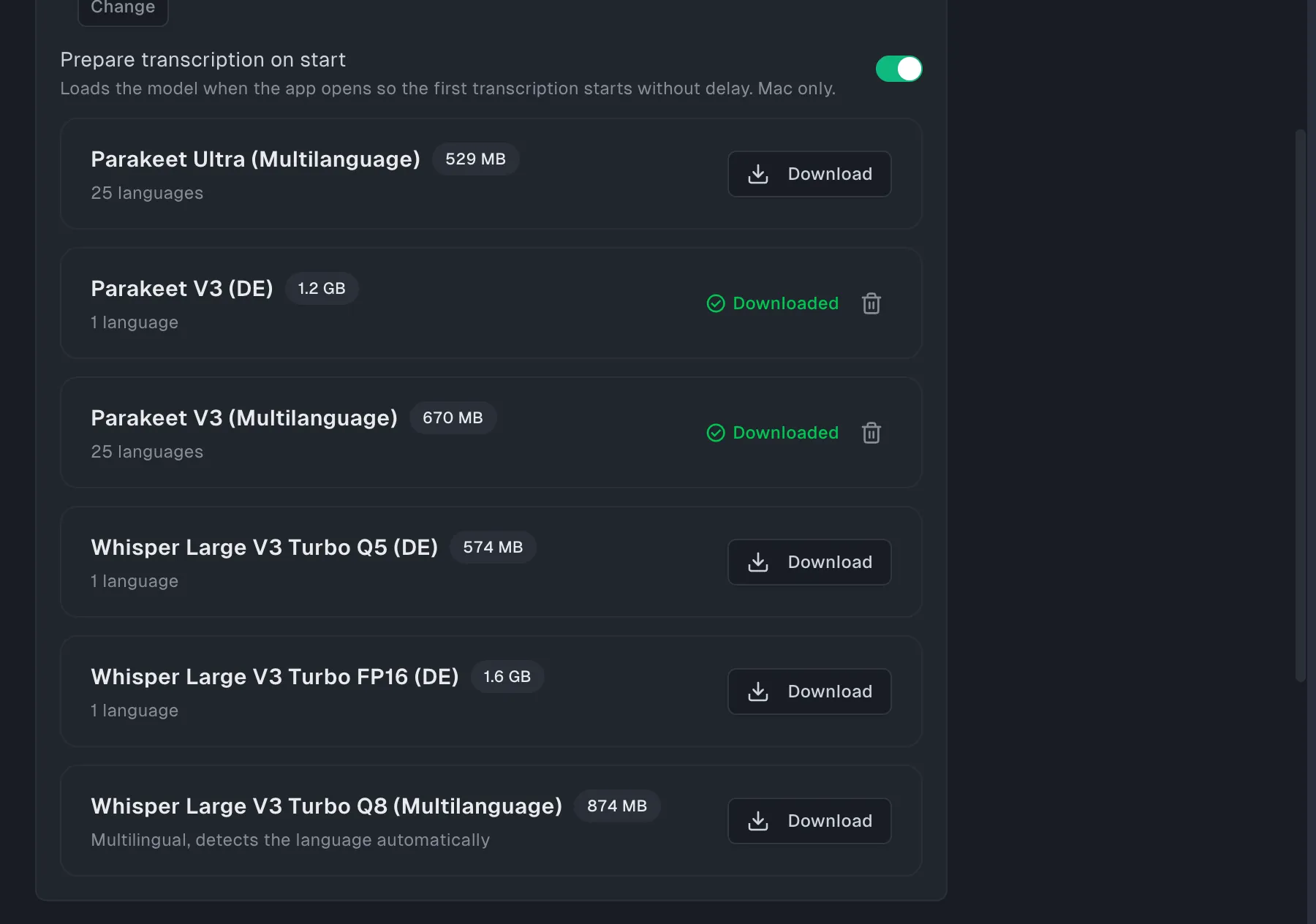
Section titled “Transcription models”Under Settings → Transcription → Models on this device, every model is listed with its size and languages.
- Download fetches a model. Progress shows as “Downloading… 42%”.
- Downloaded means the model is ready.
- Delete removes a model after a question. If you want to use it again later, Audicap downloads it again.
Which model suits what: Transcribe on your device or in the cloud.
Download missing components
Section titled “Download missing components”Besides the speech model, processing on your device needs components, mainly for speaker detection. If they are missing, the model shows Components missing and, below, what is missing.
- Next to the model, click Download components.
- Wait until the model shows Downloaded.
The components of local speaker detection appear as “Local speaker detection” with “runtime” or “model” added. With speaker detection switched off, Audicap does not need them.
Models for the AI summary
Section titled “Models for the AI summary”Under Settings → AI Summary, Local lists the models that run directly in Audicap, without Ollama:
| Model | Size |
|---|---|
| Gemma 4 E2B | 2.7 GB |
| Gemma 4 E4B | 4.9 GB |
| Gemma 4 12B | 6.7 GB |
| Qwen3.5 4B | 2.6 GB |
| Qwen3.5 9B | 5.4 GB |
Download, Delete and Use as default work as above. Audicap shows roughly how much memory a model needs. More in Local models or cloud providers.
Change where models are stored
Section titled “Change where models are stored”- Under Models on this device, click Change next to Storage location:.
- Choose the new folder.
Audicap moves nothing. Models in the old folder are no longer found afterwards; download them again into the new folder. Clicking the path opens the folder.
Change where recordings are stored
Section titled “Change where recordings are stored”Under Settings → General, Storage Location shows how much space is free in the recordings folder, for example “250 GB free”. If it cannot be measured, it says “Free space unknown”.
- Open Settings → General.
- Under Storage, at Storage Location, click Change… and choose the new folder.
If the folder cannot be written to, Audicap refuses it: “The new folder cannot be written to.” The previous folder stays set.
If no recordings lie outside the new folder, Audicap switches right away. Otherwise Audicap asks Move existing recordings? and states how many recordings lie outside, how large they are and how much space is free in the new folder. Until you answer, the old folder stays set.
| Button | What happens |
|---|---|
| Move recordings | Audicap switches to the new folder and moves the recordings there. |
| Don’t move | Audicap only switches the folder, new recordings go into the new folder. The others stay where they are and can only be played and continued again once you choose the old folder again. Until then they are also missing from backups. |
| Cancel | Everything stays as it was. |
Move recordings
Section titled “Move recordings”While moving, the dialog shows the progress, for example “3 of 12 recordings moved”. Audicap copies each recording, checks the copy and only then deletes the old files. At the end, Audicap reports how many recordings were moved. If old files could not be deleted, Audicap says so; they are then still in the old folder.
- Cancel stops moving. What has been moved stays in the new folder, and the new folder stays set. Audicap reports how many recordings were moved and how many were left in the old folder. To move the rest, choose the same folder once more. If you cancelled before moving began, Audicap reports “Moving cancelled. The storage location stays as it was.”
- Not enough space: if the new folder lacks the space, Move recordings cannot be clicked, and Audicap states how much is needed. If space runs out on the way, Audicap stops and reports what was moved and what was left in the old folder.
- Drive not connected: recordings that cannot be reached right now, for example on a drive that is not connected, are named in the dialog but not moved. If none of the recordings outside the new folder can be reached, Move recordings cannot be clicked. Connect the drive and choose the folder once more to move them.
- Busy right now: during a recording, processing, an import, a transfer from your smartphone or a backup, Audicap moves nothing and reports “Nothing can be moved during a recording or processing.” The storage location then stays as it was. Choose the folder again once that is done.
Good to know
Section titled “Good to know”- Models come only from the Audicap server, not directly from third parties.
- With little memory, Audicap warns at the model how much it roughly needs.