
Connect Claude Desktop and Claude Code
With the Model Context Protocol (MCP), AI assistants such as Claude Desktop or Claude Code can read your recordings in Audicap. You can then ask, for example: “What did we decide about pricing in the last planning meeting?”
Switch access on
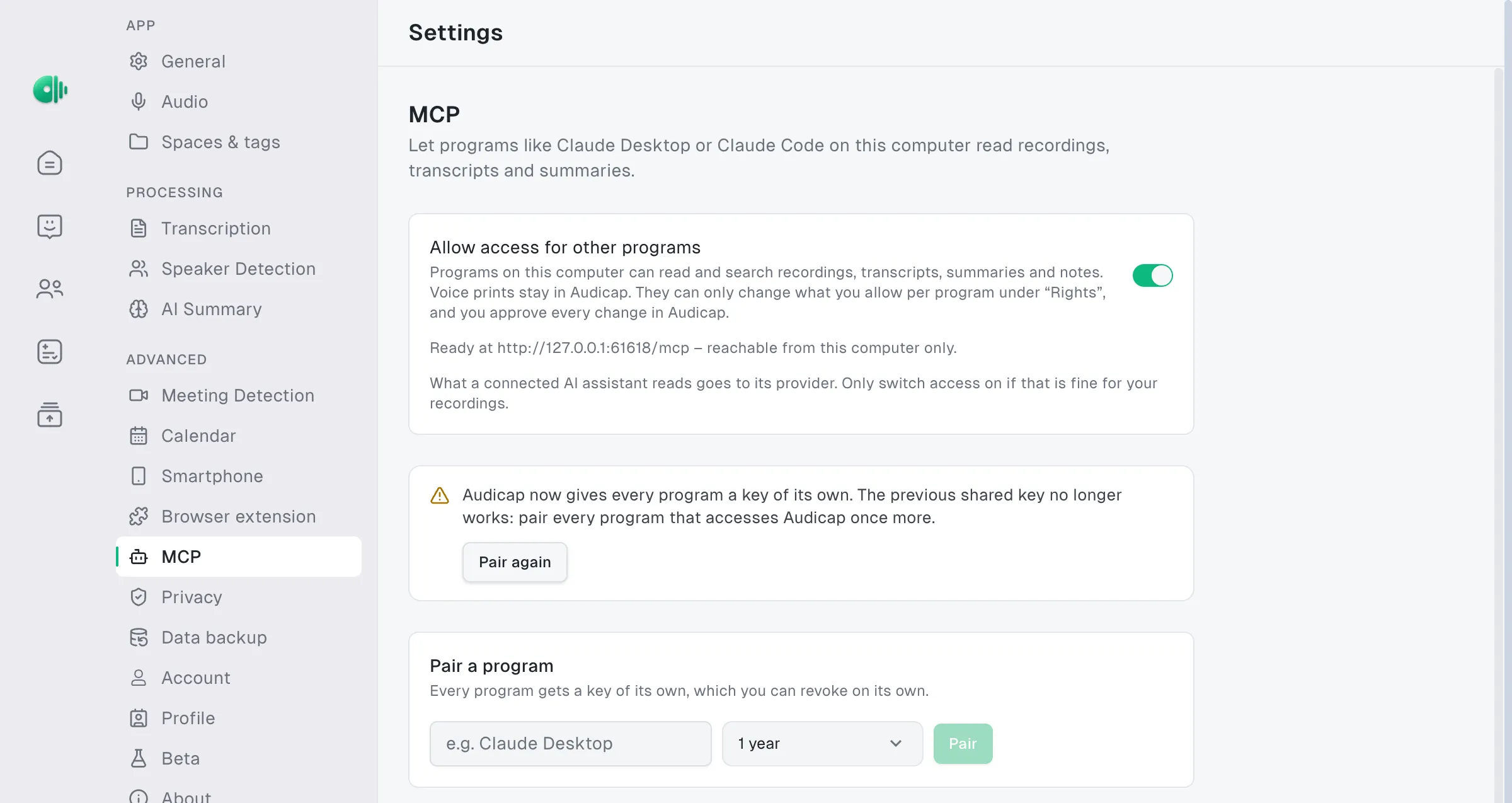
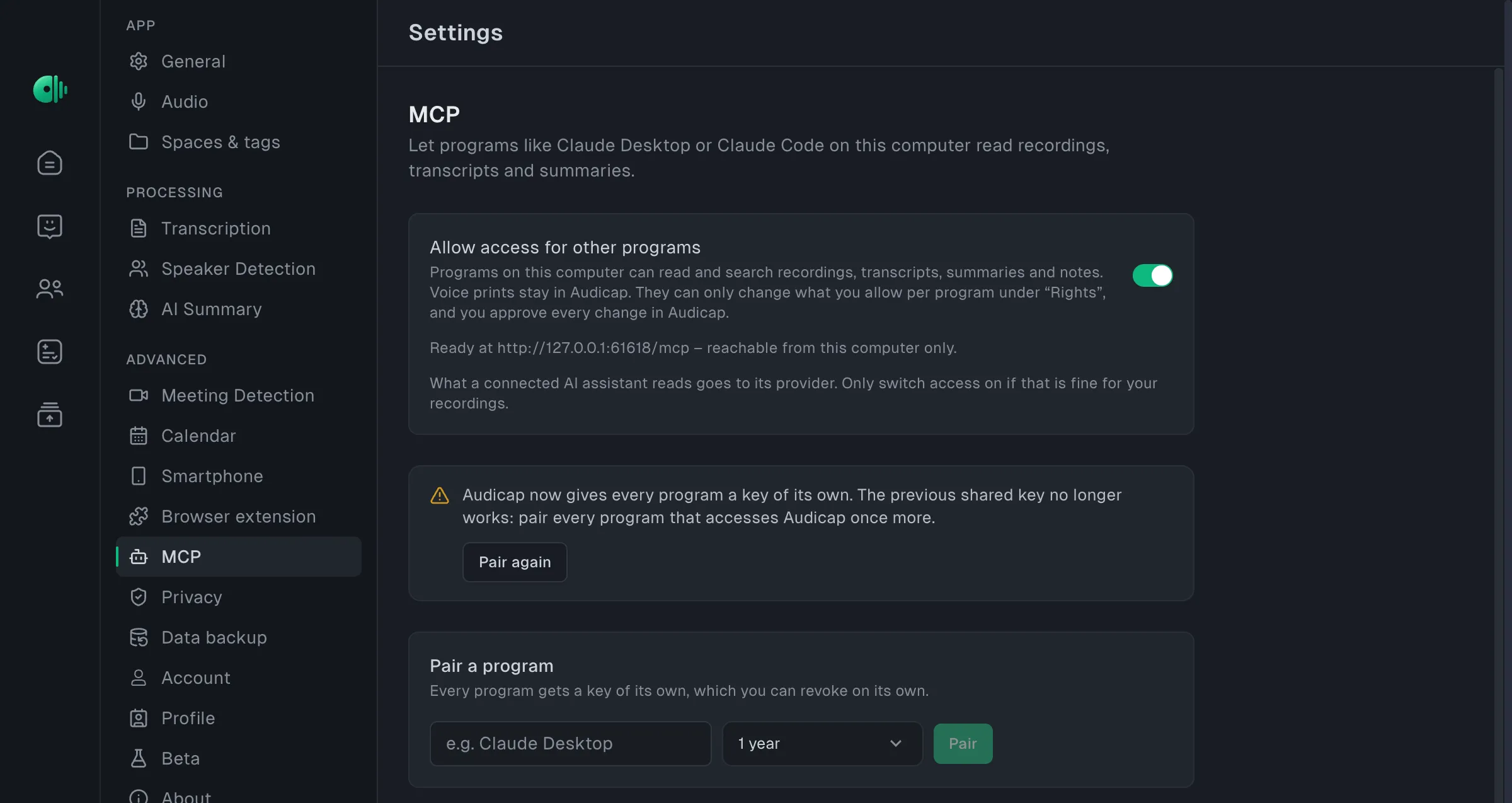
Section titled “Switch access on”- Open Settings → MCP.
- Switch on Allow access for other programs.
- Below the switch it now says “Ready at … reachable from this computer only.”
Access needs an active subscription or the trial.
Pair a program
Section titled “Pair a program”Every program gets a key of its own, which you can revoke on its own.
- Under Pair a program, enter a name, for example “Claude Desktop”, and choose how long it is valid: 30 days, 90 days, 1 year or Until revoked.
- Click Pair. The key is shown only now.
- Copy the configuration you need (below) before you click Done. The key is hidden on screen; the real key is what gets copied.
Under Paired programs you see when a program was paired, until when it is valid and when it was last used. Revoke locks out only this program.
If you used Audicap with an assistant before version 0.13: the previous shared key no longer works. Audicap then shows a notice with Pair again. Pair every program once more and enter its new configuration.
Claude Desktop
Section titled “Claude Desktop”- Under Claude Desktop, click Copy. This copies a complete configuration with the
mcpServerssection and theaudicapentry in it, key included. - Open Claude Desktop’s configuration file,
claude_desktop_config.json:- File is empty or new: Paste the copied configuration in full.
- File already contains
mcpServers: Take over only the"audicap": { … }entry into the existingmcpServerssection, separated from the previous entry by a comma. Replace an oldaudicapentry.
- Restart Claude Desktop.
Audicap has to be running while Claude Desktop accesses your recordings.
Claude Code
Section titled “Claude Code”- Under Claude Code, click Copy.
- Paste the command into a terminal and run it.
Rights for each program
Section titled “Rights for each program”A newly paired program may read transcripts, summaries and notes in all spaces, but change nothing. Under Paired programs, click Rights to set this for each program, then Save:
- You switch Transcripts, Summaries and Notes off one by one. Without a right the program lacks the tool for it, and the search finds only in titles and the texts it may read.
- Under Spaces, choose single spaces instead of All spaces. The program does not see recordings outside them.
- Show speakers as P1, P2 … and Redact e-mail addresses, phone numbers and IBANs hide such details from the program. This is pseudonymisation, not anonymisation: names in running text stay.
- You allow Change tags, Append to notes and Check tasks one by one. They are off by default.
Approve changes
Section titled “Approve changes”When a program wants to change tags, append to notes or check a task, this never happens right away. Audicap shows the change as a card in the main window. If the window is not in front, a notification comes as well. Only Approve carries the change out, Reject discards it. Without an answer, the request expires after 10 minutes.
Voice prints always stay in Audicap. An assistant cannot delete anything.
What else the assistant can do
Section titled “What else the assistant can do”- It searches titles, transcripts, summaries and notes, and finds recordings by space, tags and date range as well.
- If it may read transcripts, your recipes are available to it as prompts.
- When it quotes a passage, it links it with
audicap://. A click on the link opens the recording in Audicap at that point.
Access log
Section titled “Access log”The Access log shows every tool call with program, tool, recordings and amount of data, without content. Entries are deleted after 90 days. Export (CSV) saves the log as a file.
Security
Section titled “Security”- Access is switched off by default and reachable from this computer only, never from the network.
- Every program needs its own key. An expired or revoked key no longer works.
- A policy of your organisation can switch access off or limit it to spaces, transcripts and changes. Audicap shows this in the settings.
If it doesn’t work
Section titled “If it doesn’t work”- “Audicap is not running, or access for other programs is switched off”: Start Audicap and check that the switch under Settings → MCP is on.
- “This Audicap connection has no key of its own” (Claude Desktop) or “Audicap now gives every client a key of its own” (Claude Code): The configuration still dates from the shared key. Pair the program again and enter the new configuration.
- “This key expired on …” or “Audicap does not know this key, or it was revoked” (as Claude Desktop reports it): The key has expired or was revoked. Pair the program again.
- “Not running. See the log for details.”: Switch access off and on again. If that doesn’t help, contact us via Support in the app and attach the debug info.