
Share and export
Share passes on what you are looking at: the transcript, the notes or a summary.
How to
Section titled “How to”- Open the recording and choose the tab you want to share: Transcript, Notes or a summary.
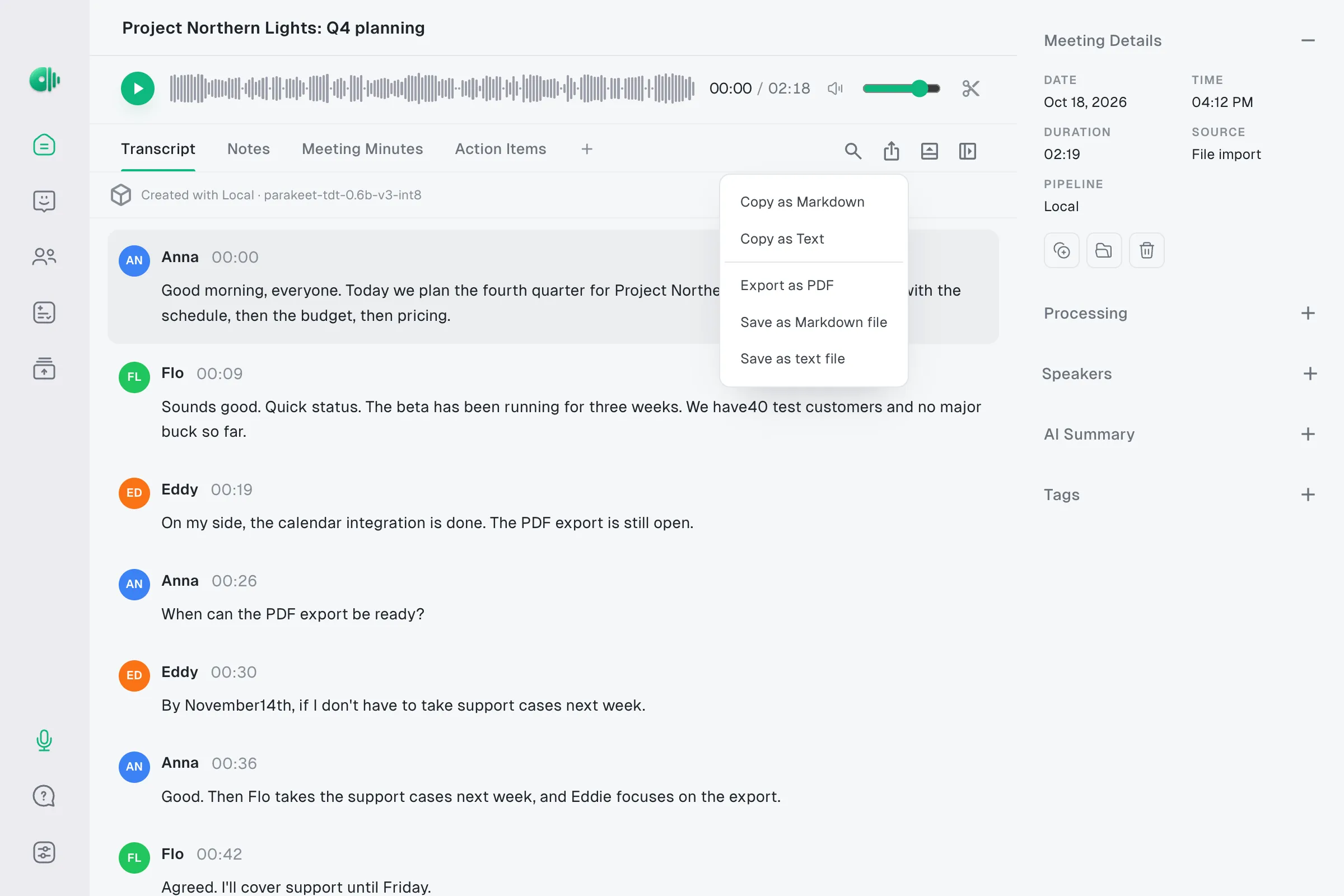
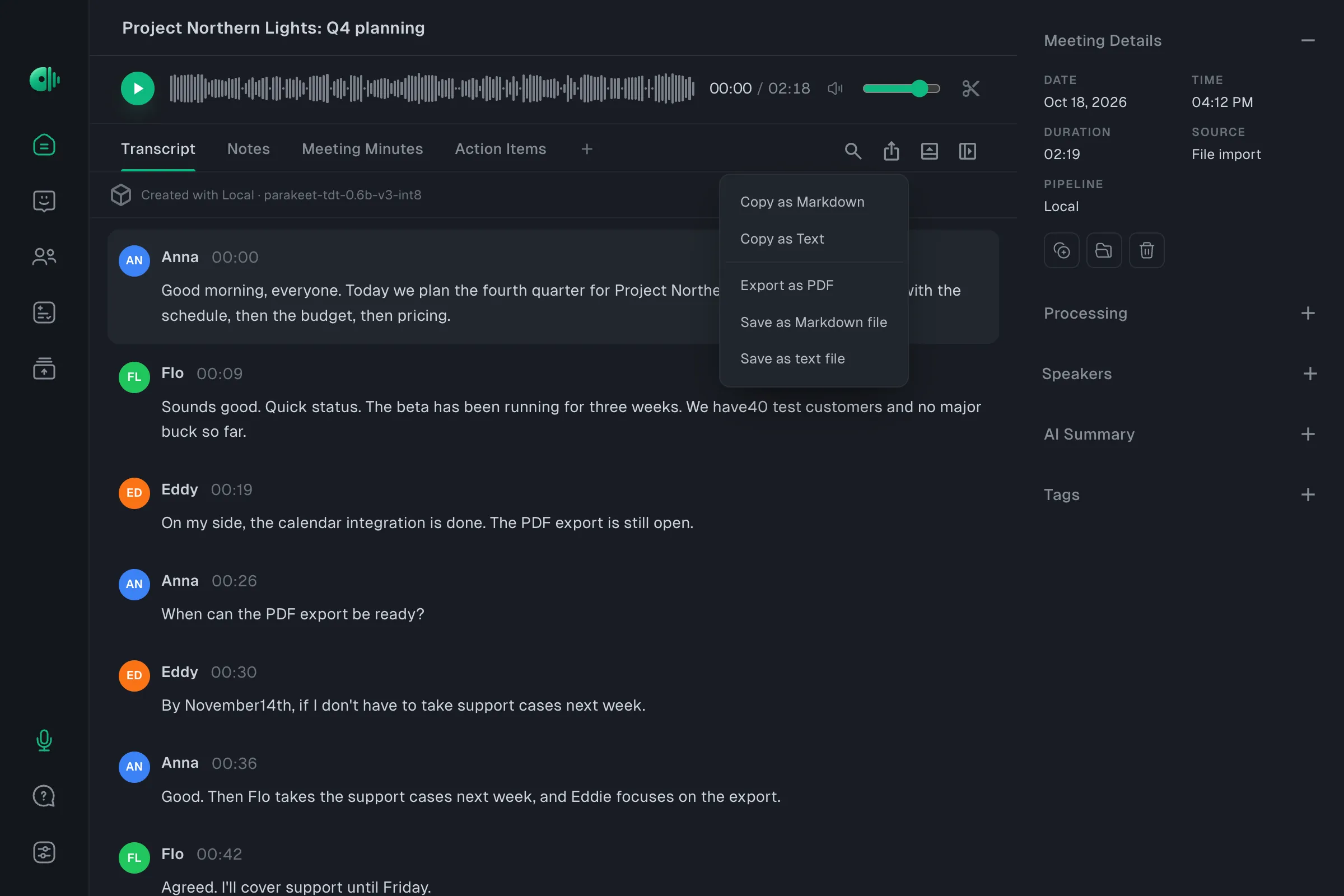
- In the tab bar, click Share.
- Choose:
- Copy as Markdown or Copy as Text for the clipboard,
- Export as PDF, Save as Markdown file or Save as text file for a file.
When saving, you choose place and name. Audicap then reports “Export saved”, and Open opens the file right away.
What is in it
Section titled “What is in it”- Always only the active tab. For transcript and summary you need two exports.
- At the top are the recording’s title, date and time.
- The transcript comes with speaker and timestamp. If several passages of the same speaker follow each other, Audicap joins them.
- For a summary, Audicap takes the newest one with this template.
- The file name starts with the date (YYMMDD), followed by the tab’s name.
Find the audio file
Section titled “Find the audio file”On the right, in the Meeting Details section, Show in Finder (Windows: Show in Explorer) opens the folder with the recording’s audio file. From there you copy it wherever you like.
What does not exist
Section titled “What does not exist”- No export as subtitles (SRT or VTT) and none as a Word file (DOCX).
- No audio export from the menu. You get the file through Show in Finder.
- The Notes tab has no copy entries, only saving as a file.
Good to know
Section titled “Good to know”- While a summary is still being written, Share is locked.
- For AI assistants such as Claude there is Copy for MCP: Copy for MCP.